Integrated terminal
Trq has a built-in Terminal — a real shell inside the app, so you can commit a fixed test, pull the latest, or run a script without switching windows. It's the last tab in the bottom panel, next to Events, Console, Network, Summary, Timeline, and Elements.
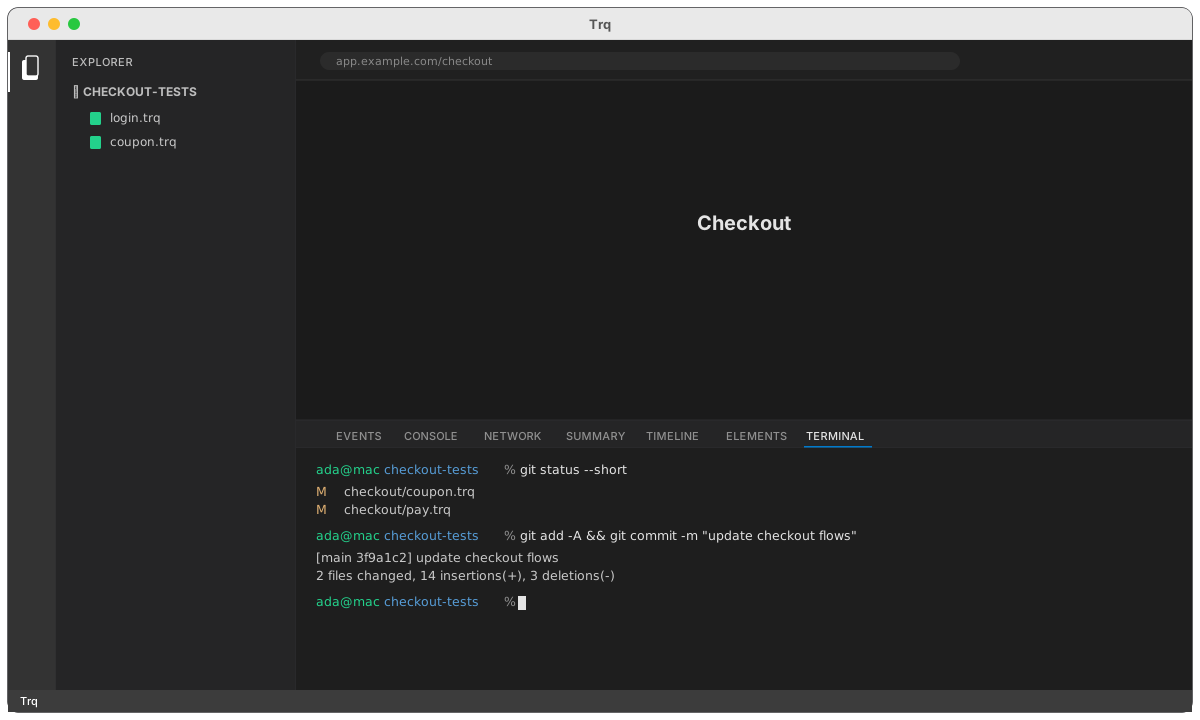
What you get
- A full shell — your login shell (
$SHELL) with real colors, prompts, and interactive programs. Not a fake command box:git log, arrow-key history, andCtrl-C/Ctrl-Dall work as they do in any terminal. - Rooted at your project — the terminal opens in the folder your sessions live in, so
git status,npm test, and relative paths just work against the project you're testing. - Always to hand — flip to it while a recording or playback is open; your scrollback and any running command stay put when you switch to another tab and back.
Open it
Click Terminal in the bottom-panel tab strip. If the panel is hidden, press ⌘J to show it first.
Trq's layout shortcuts keep working while you're typing in the terminal, so you never get trapped in it:
- ⌘J — show / hide the bottom panel
- ⌘F — maximize / restore the panel (handy for a full-height terminal)
- ⌘D — move the panel between the bottom and the right
- ⌘B — toggle the Explorer
Shell control keys stay with the shell — ⌘ drives Trq, Ctrl drives the terminal — so Ctrl-C, Ctrl-D, and Ctrl-L do exactly what you expect, and ⌘C / ⌘V copy and paste.
Each Trq window has a single terminal session. Hiding the panel with ⌘J ends that shell (like closing a terminal tab); reopening the Terminal starts a fresh one in the project directory.