Keyboard shortcuts
Studio shortcuts (macOS ⌘ / Windows–Linux Ctrl). They're ignored while you're typing in a text field.
| Shortcut | Action |
|---|---|
⌘B | Toggle the File Explorer sidebar |
⌘⌥B | Toggle the Inspector (right sidebar) |
⌘J | Show / hide the bottom panel |
⌘D | Move the panel between bottom ↔ right |
⌘⇧F | Search sessions by name |
⌘F | Maximize / restore the panel (Esc also restores) |
⌘T | New tab |
⌘, | Edit metadata for the selected session |
The panel's ⋮ menu shows these dock/maximize shortcuts inline too.
What each one does
The default layout — sidebar on the left, bottom panel docked below:
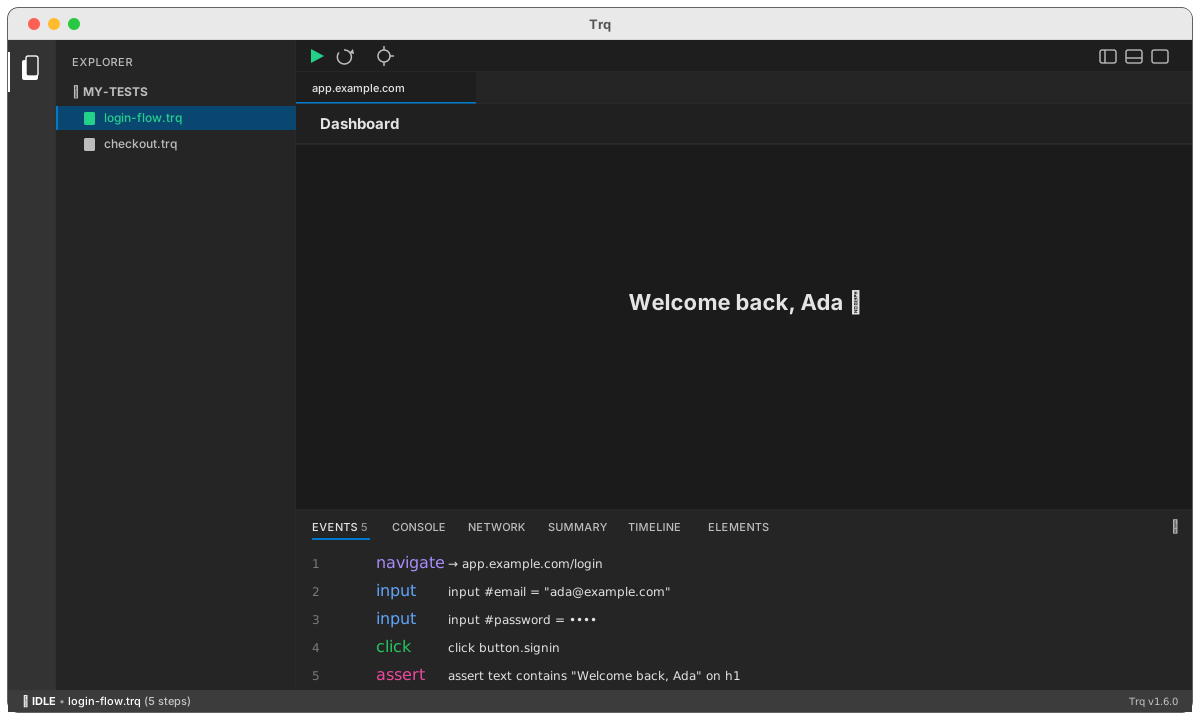
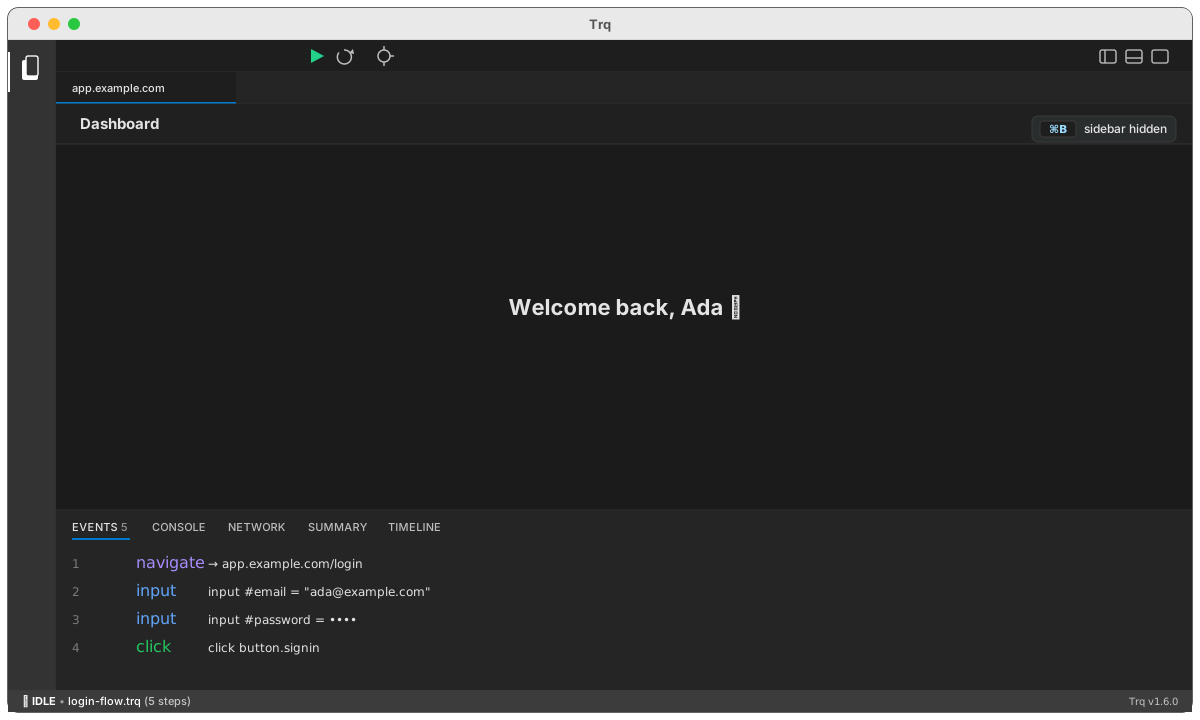
⌘B — toggle the File Explorer sidebar
Hide it to give the page more room; press again to bring it back.
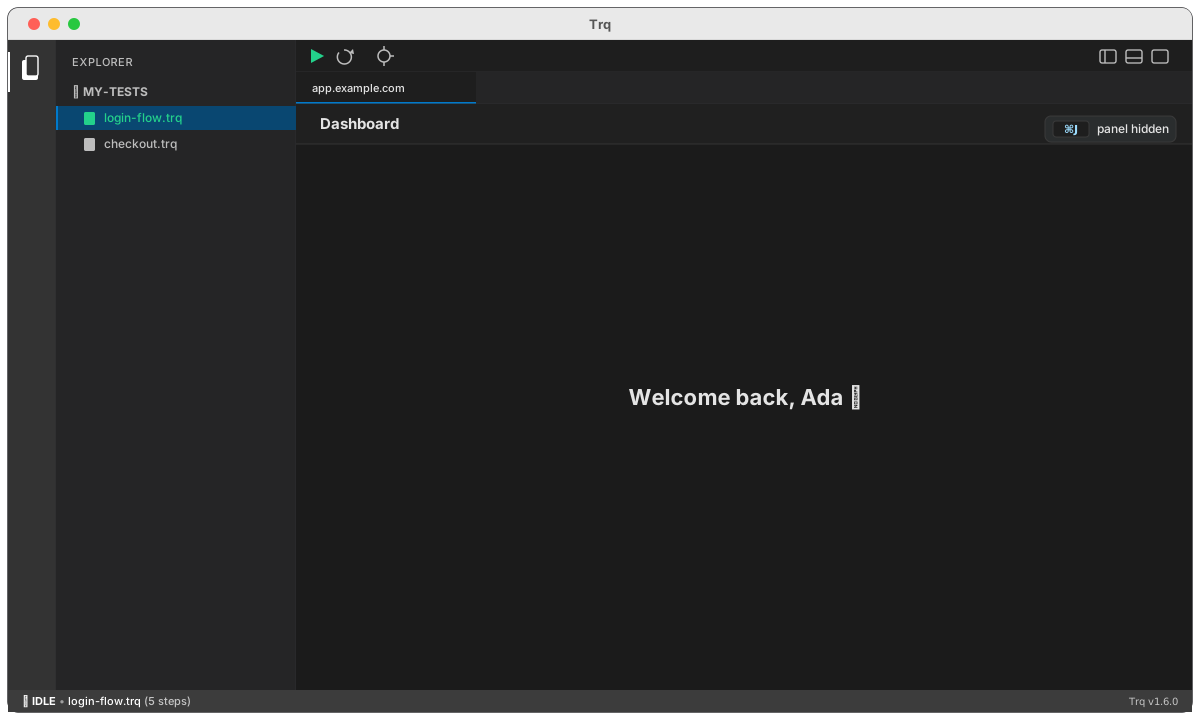
⌘J — show / hide the bottom panel
The browser expands to fill the freed space.
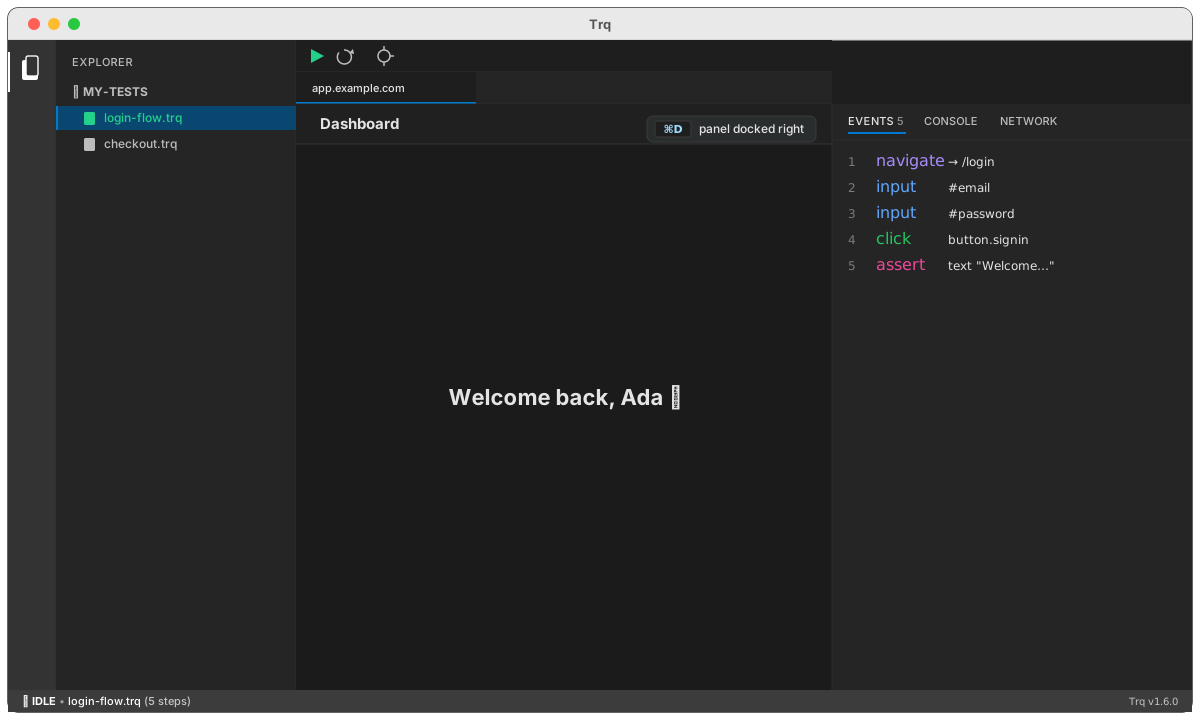
⌘D — dock the panel bottom ↔ right
Move Events/Console/Network to a side column when you want the page and the log visible at once.
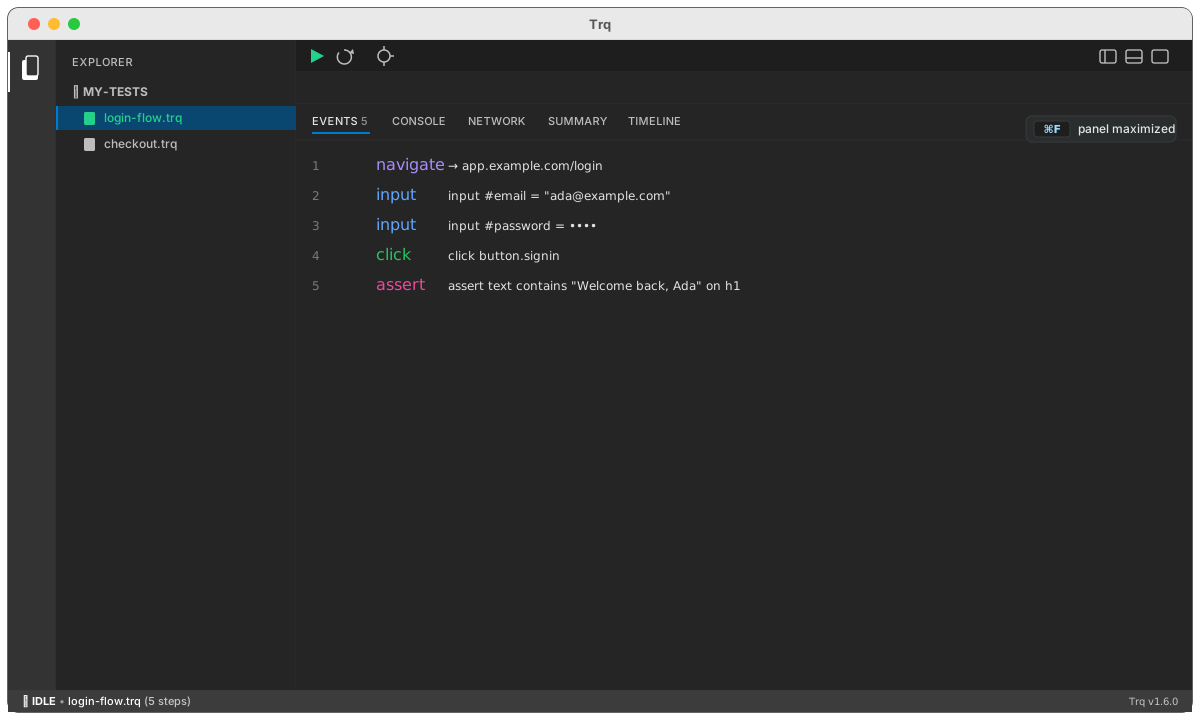
⌘F — maximize / restore the panel
The panel fills the editor area for a focused read of the run; Esc restores it.
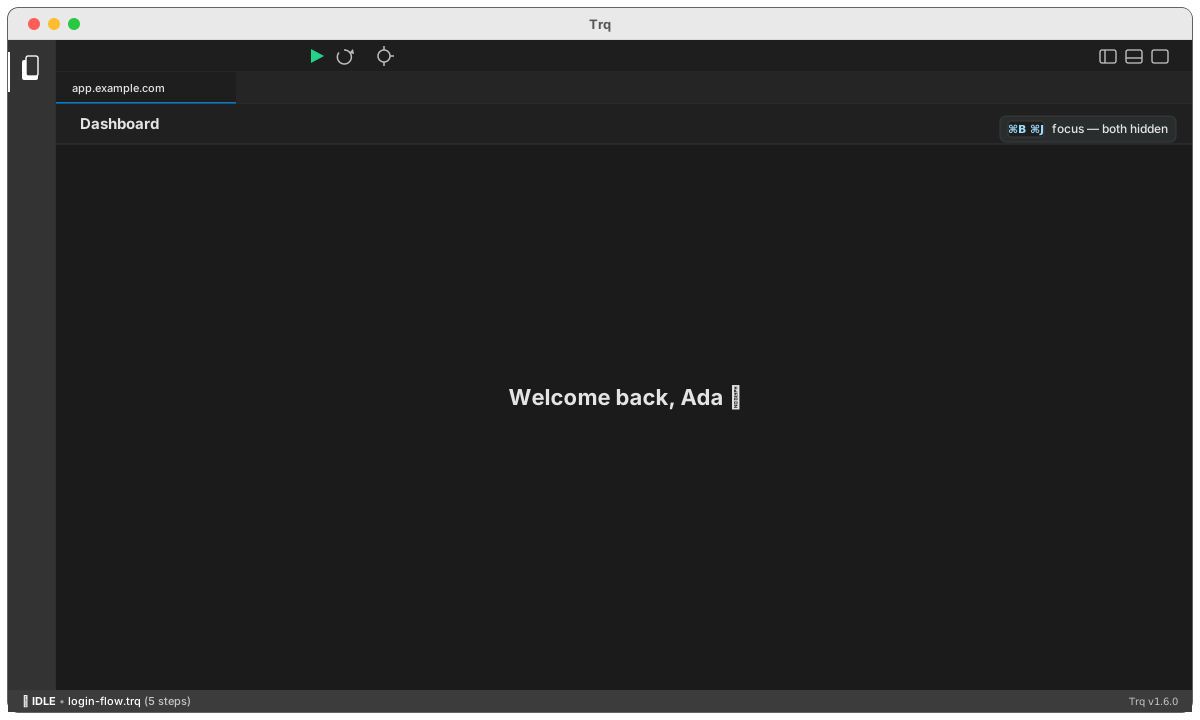
⌘B + ⌘J — focus mode
Hide both the sidebar and the panel for a distraction-free view of the page.
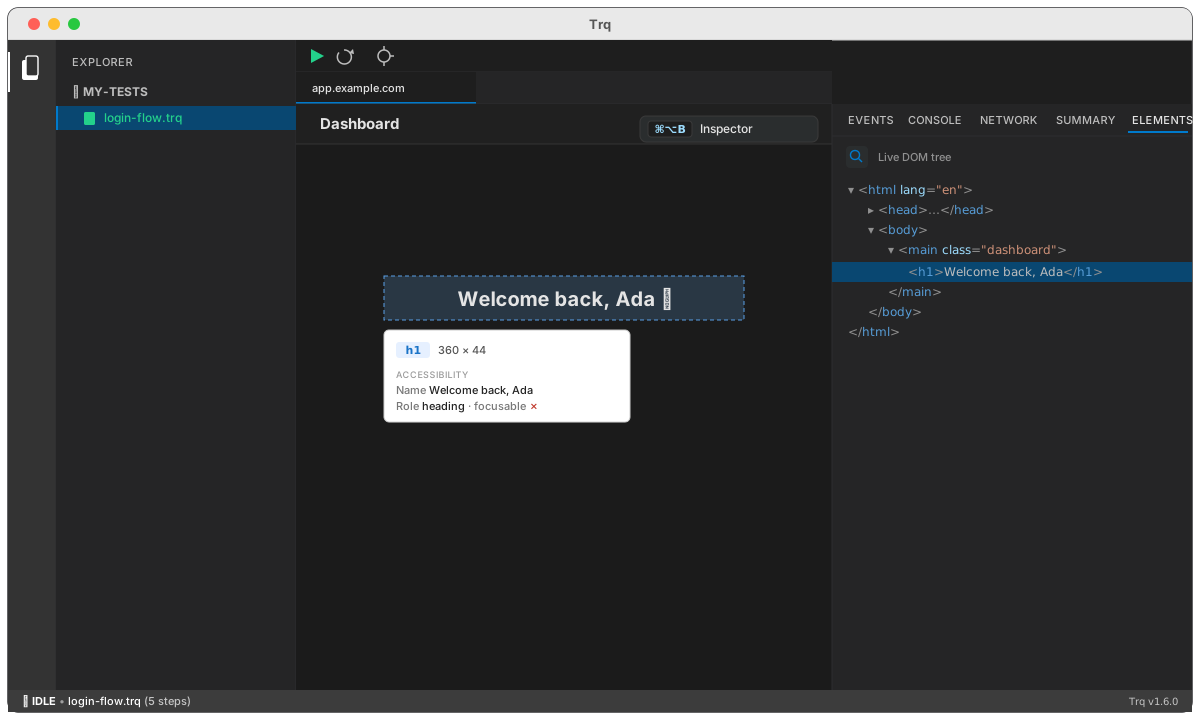
⌘⌥B — toggle the Inspector
Opens the right-hand Inspector (Elements): a live DOM tree, plus an accessibility tooltip for the element under the cursor.
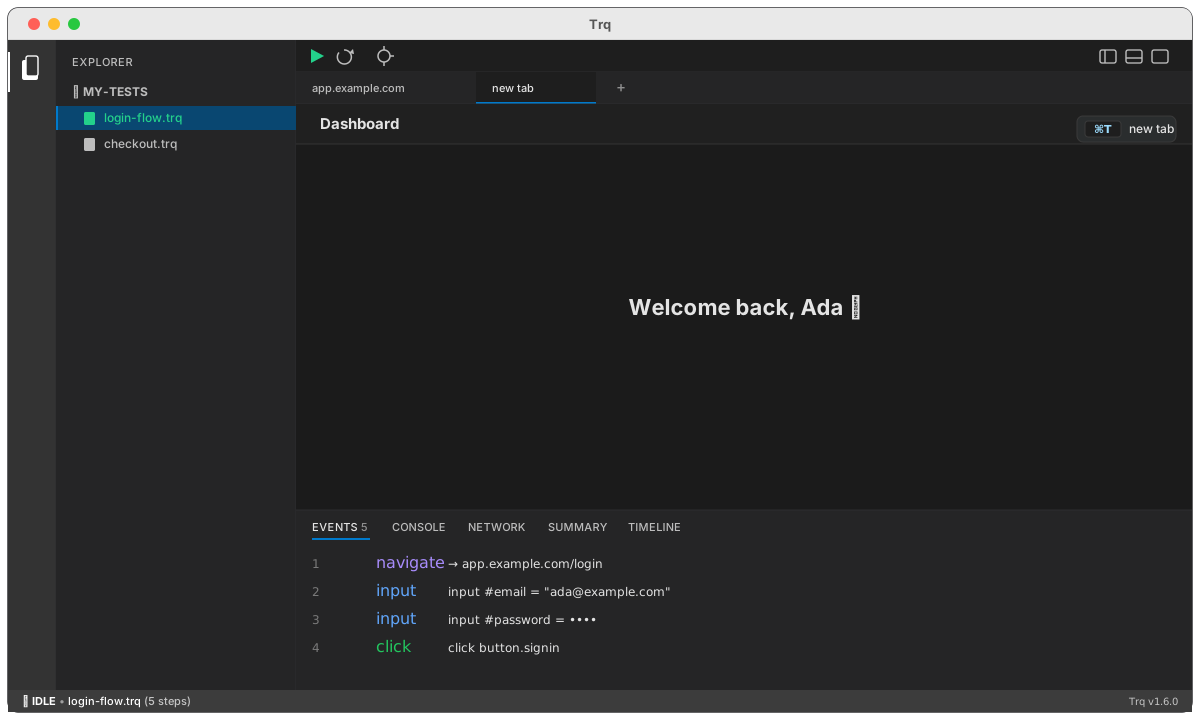
⌘T — new tab
Opens another browser tab in the same session.
⌘, — edit metadata
Opens the Metadata drawer for the selected session.