Recording
Click Record on an empty session (or use Resume to extend an existing one). While recording, Trq captures:
- Clicks (with button + modifiers), inputs (text, selects, checkboxes), and keystrokes (Enter, Tab, shortcuts).
- Navigations — full page loads and in-document (SPA) route changes.
- File uploads — the chosen files are content-addressed and stored with the session, so uploads replay byte-for-byte.
- Tabs — opening a new tab and switching between tabs (Studio follows along; see below).
- Assertions you author inline (next).
Passwords are recorded as their actual value (stored in the session bundle) so replay needs no prompts. Treat .trq files that contain credentials accordingly.
Author an assertion while recording
While recording, click the ⌖ Assert button in the top toolbar (between Stop and Capture). It turns blue to show assert mode is on, and the page enters pick mode — hovering outlines each element. Click the element you want to check.
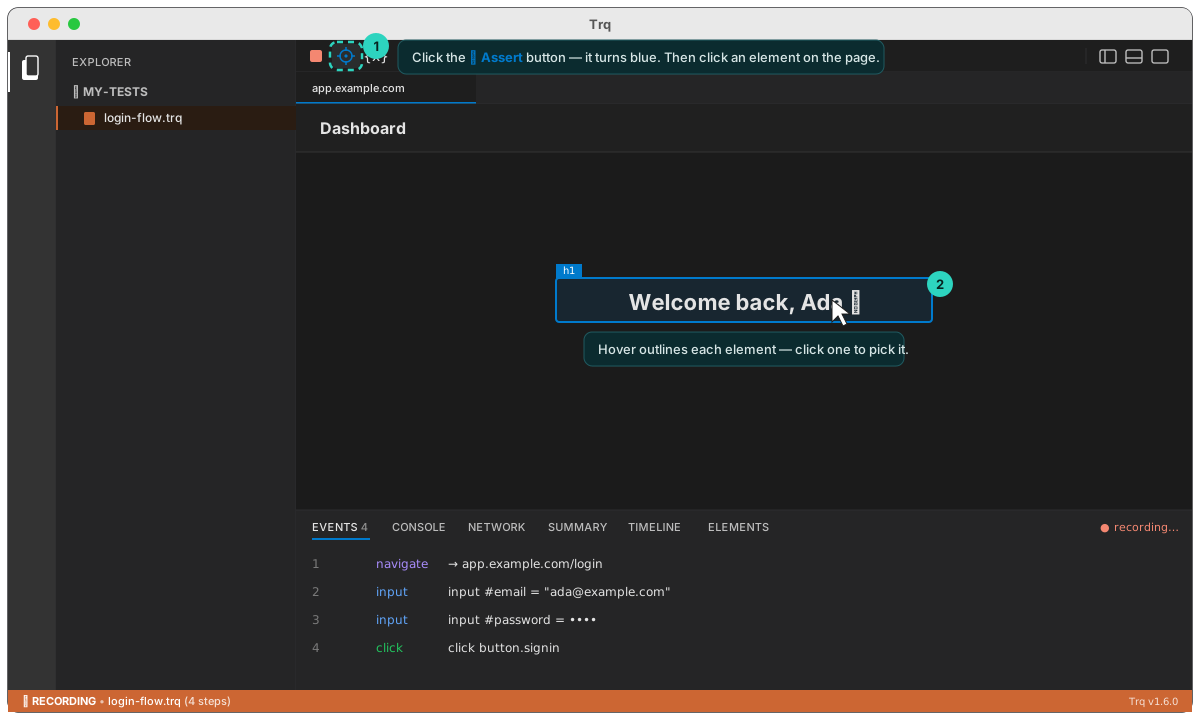
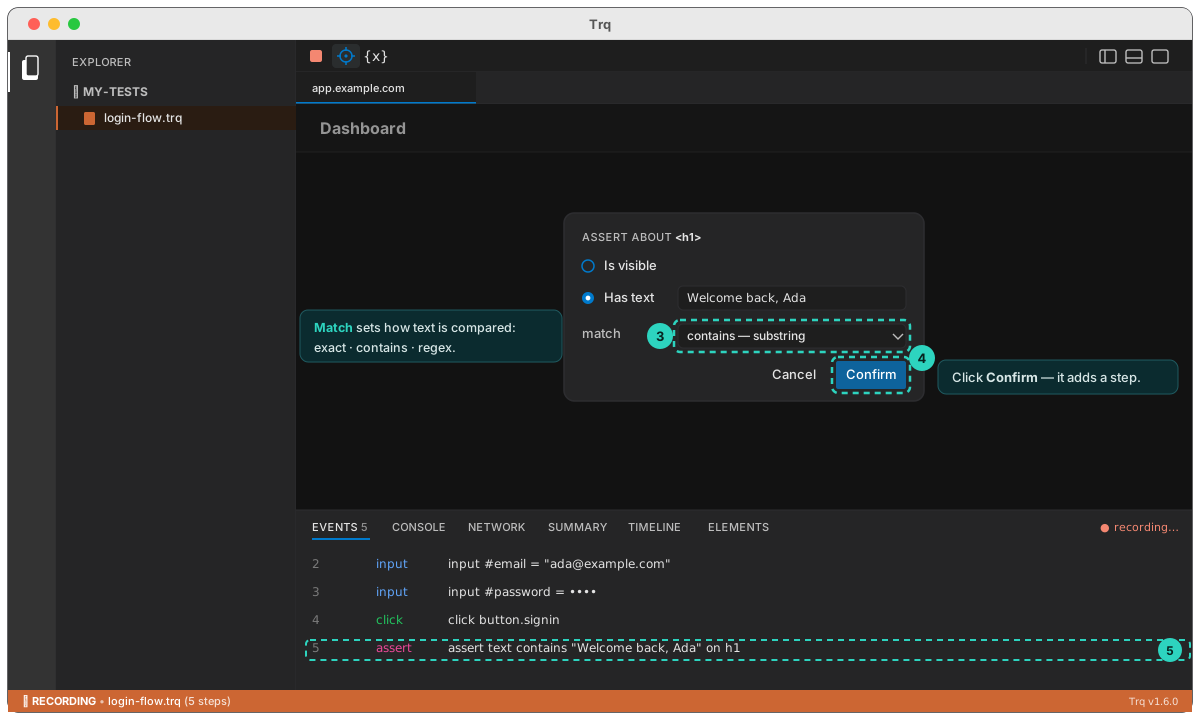
A small menu opens, titled Assert about <tag>, offering:
- Is visible — the element is present and visible.
- Has text — the element's text matches (pre-filled from the element).
- Has value — an input's/select's value matches (pre-filled, shown only for form fields).
Pick one and click Confirm. The assertion is added as a step — it shows up in the Events panel as an assert row (pink badge) like assert text contains "…" on <selector>.
Assertions inside same-origin iframes are supported — the picker reaches into the frame and the menu renders in the main window.
Match modes — exact, contains, regex
For Has text and Has value, a Match dropdown controls how the recorded string is compared against the live value at replay time. The default is exact (and any older recording with no mode set stays exact), so behavior is unchanged unless you opt in. You can set the mode while authoring or later in the Edit drawer (handy for relaxing an assertion that failed because the live text had extra characters).
-
exact — the value must equal the expected string character-for-character.
Has text · match: exact · "Submitted"passes → "Submitted"fails → "Form Submitted", "submitted" -
contains — passes if the expected string appears anywhere inside the live value (substring). Use this when the element wraps your text in extra labels/punctuation.
Has text · match: contains · "Destination Screen"passes → "Destination Screen", "Destination Screen : Thank You"fails → "Source Screen" -
regex — the expected string is a JavaScript regular expression (
new RegExp(pattern), case-sensitive, no/…/flagswrapper) tested against the live value. Use anchors/character classes for precise structural checks.Has text · match: regex · "^Order #\d+$"passes → "Order #7742", "Order #1"fails → "Order #", "Pending Order #12"An invalid pattern fails the step with
invalid regex "…".{{var.NAME}}templates are resolved before the match, socontains/regexcan reference captured values too.
Failure messages name the mode, e.g.
expected text to contain "Destination Screen" but found "Source Screen" (after 5000ms).
Table assertions
For HTML <table> content, Trq has table-aware assertions that address rows and columns logically — no brittle nth-child cell selectors. While recording, turn on ⌖ Assert and click any cell inside a table: the menu detects the table and offers a Table cell (and Row count) option, pre-filled from the cell you clicked.
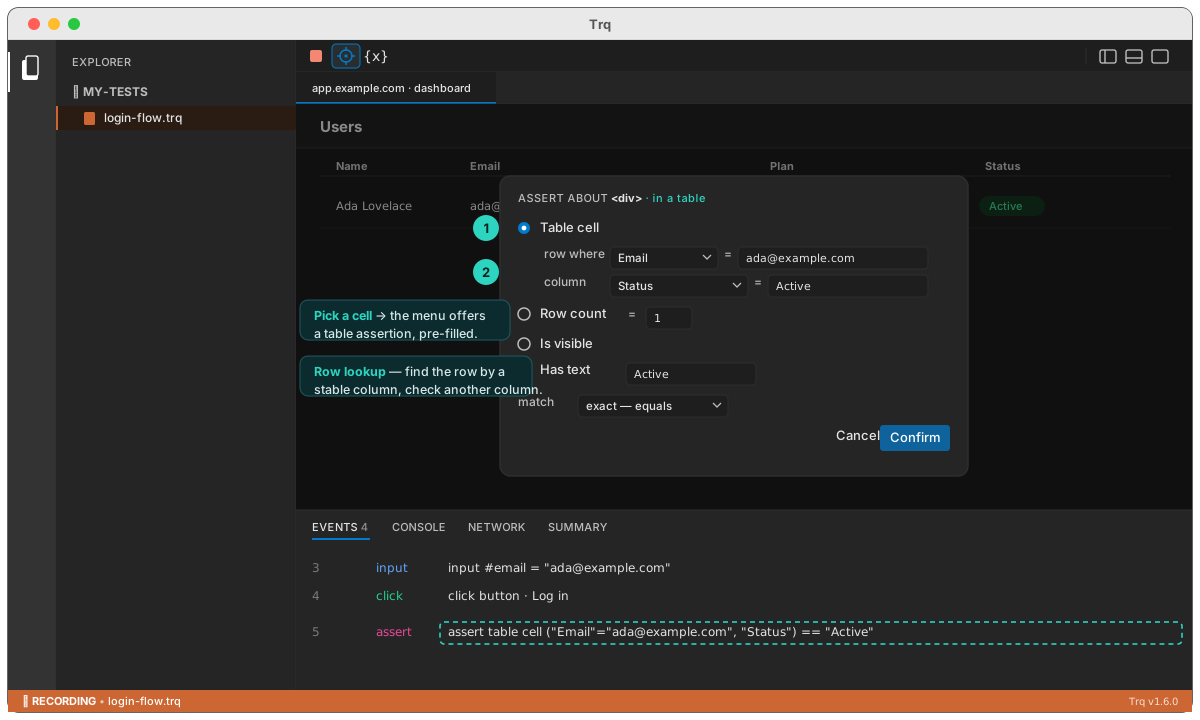
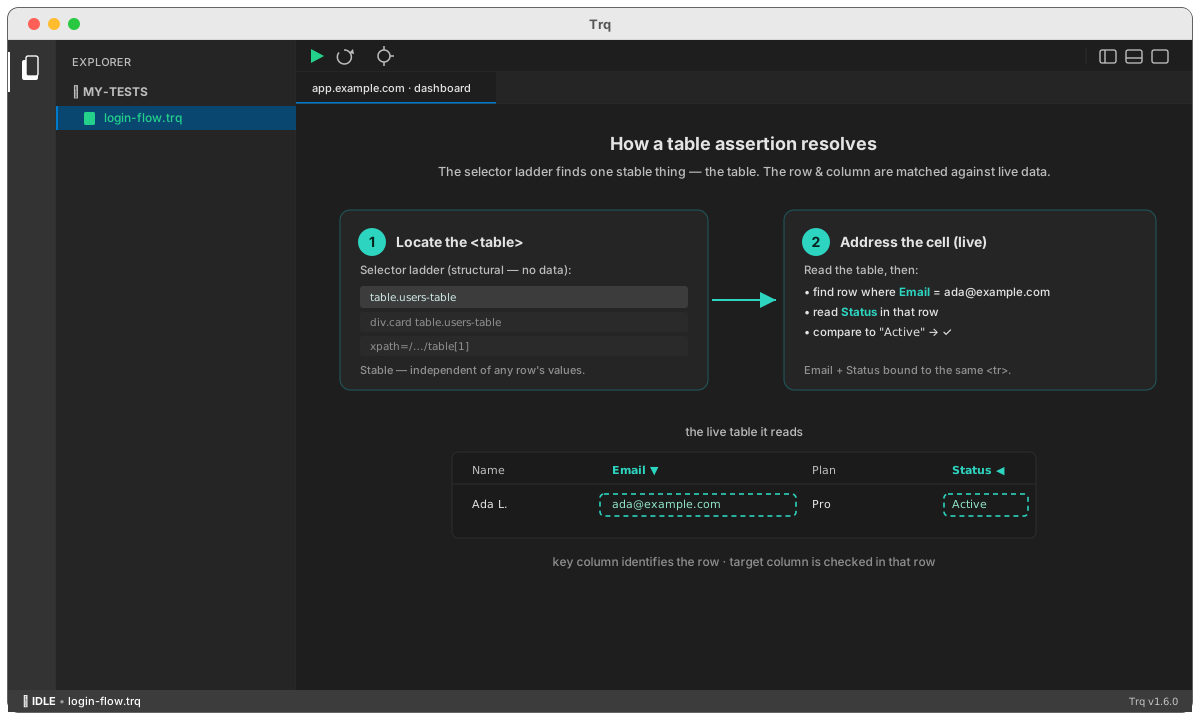
The star of the show is the row lookup: instead of “row 3, column 6”, you say “the row where Email = ada@example.com, check its Status”. The email identifies the row; the status is checked in that same row.
The three kinds
-
table · cell — assert one cell's text. The row is addressed by body index or, more robustly, by a key cell (“the row where Name =
Alice”); the column by its header or index.table · cell · row where "Email" = "ada@example.com" · column "Status" · exact · "Active" -
table · row count — assert the number of body rows with
=,≥, or≤. Add a filter to count only matching rows — including= 0to assert no row matches (a deleted record is gone).table · rows = 0 where "Name" = "Bob" # Bob's row is gone -
table · column — assert a whole column contains a set of values, or equals an ordered list.
Columns addressed by header survive column reordering. Header matching is case-insensitive and whitespace-tolerant. Expected values and lookup keys accept {{var.NAME}} templates, and the same match modes (exact / contains / regex) apply.
Refine it in the Edit drawer
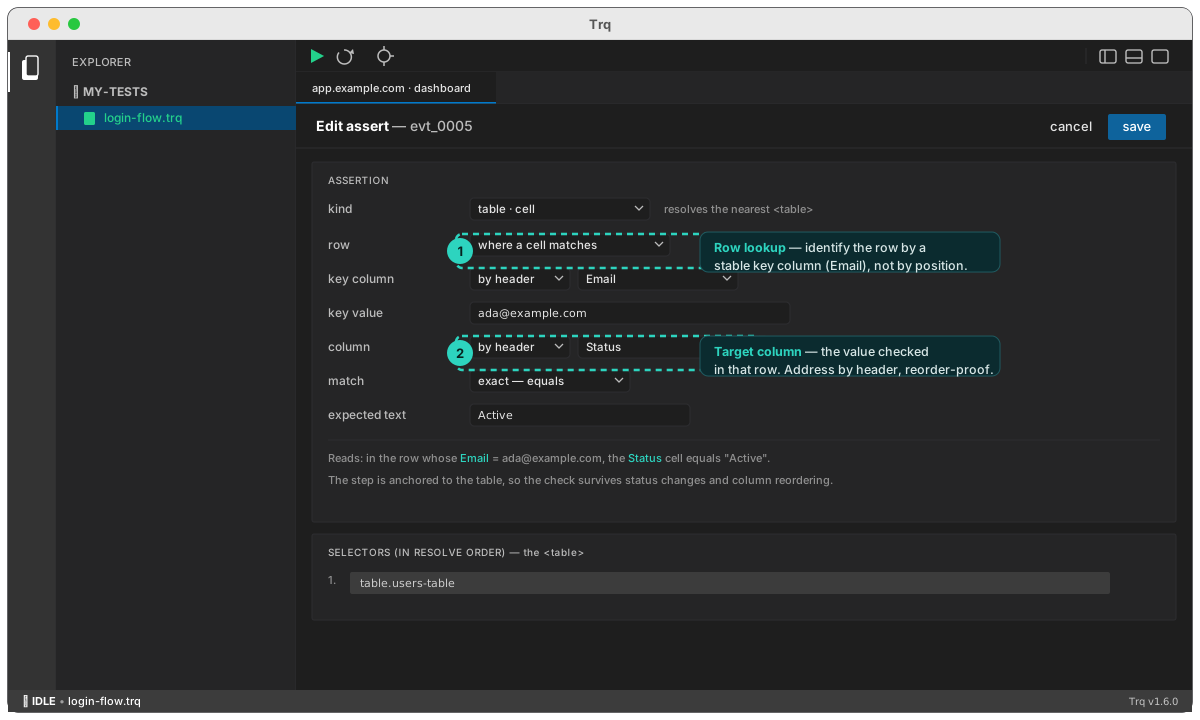
Any assert can be authored or refined in the Edit drawer — set kind to a table · … and fill the row/column fields:
How it resolves
A table assert resolves in two layers. The selector ladder finds one stable thing — the <table> (structural selectors, no cell data). Then, at replay time, Trq reads the live table and matches the row and column against the data: it finds the row whose key cell matches, and reads the target column in that same row. Because both come from the same <tr>, the two values stay bound together — and the check survives status changes, re-renders, and column reordering.
Counting and attribute assertions
Two assertion kinds ask about something other than an element's text or state. Both are authored in the Edit drawer → Assertion section (set kind):
- element count — how many elements the selector matches, with
exactly/at least/at most. This is the only assertion where zero is a valid answer, so it's also how you assert that something is absent:count of .error-row is exactly 0. It counts across every reachable document (including same-origin iframes) and never reports "selector did not resolve". - attribute equals — the value of a named attribute on the resolved element, with the usual exact / contains / regex match modes. Use it for state carried in markup rather than text:
aria-expanded,data-status, anhref, a graph node'sdata-id. The expected value is templatable, so it can be compared against a captured variable.
count deliberately skips ambiguous rungs (text/, aria/, chained and xpath rungs), which resolve to a single element by construction and would always answer 1. It counts the first CSS rung that matches anything.
Node graphs and canvas UIs
Node-graph editors built on React Flow record and replay without anything special:
- Connecting nodes — dragging from one connection handle to another is captured as a
dragstep and re-driven as a real mouse gesture, so the edge is genuinely created on replay. - Selecting a node — recorded as an ordinary click. React Flow stamps
data-testid="rf__node-<id>"on every node, which Trq already prefers, so node selectors are stable by default. - Handles get an order-independent selector built from their own attributes (
[data-nodeid='x'][data-handlepos='top']) rather than a positional path — so a recording survives nodes being added or reordered. - Repositioning a node — dragging a node to a new spot is recorded as a drag with an offset destination (
drag <node> by (110, 55)) rather than a drop target, because there isn't one. - Panning and zooming — a canvas pan is an offset drag on the pane; wheel and pinch (ctrl+wheel) zoom are recorded as a
wheelstep. - Asserting the graph — use element count for
.react-flow__node/.react-flow__edge, and attribute equals for a node's own state.
Free-form drags and zoom
Two things make a canvas different from ordinary drag-and-drop, and Trq handles both:
There is no drop target. Dropping a node somewhere on open canvas can't be described as "released over element X". Such a drag is recorded as a delta instead — and the delta is stored in the canvas's own coordinate units, not screen pixels. Trq divides by the surface's current zoom when recording and multiplies by the live zoom when replaying, so a move recorded at 100% lands on the same world position when the test runs against a canvas sitting at 60%.
The delta is measured from how far the element actually travelled, not how far the mouse did. Drag libraries swallow the first few pixels as a movement threshold, so the two differ — and on replay Trq primes the gesture with a small nudge before measuring, so the node lands exactly where it was recorded rather than consistently short.
A drag that ends where it began is ambiguous. Dragging a node keeps it under the cursor the whole way, so press and release land on the same element — which is also what selecting a paragraph of text looks like. Trq separates them by checking whether anything actually moved between press and release. Text selections are still ignored; node moves and canvas pans are recorded.
A wheel step records the summed scroll of one gesture (the browser fires dozens of events for a single swipe) along with whether ctrl was held — browsers synthesize ctrl+wheel for a trackpad pinch, and canvas libraries read exactly that to tell zoom from scroll. Replaying without the modifier would scroll the page instead of zooming the canvas.
Multi-tab
In Studio, recording and replay follow into new tabs and windows — tab-open and tab-switch are captured and re-driven automatically.
You can also author a new-tab navigation instead of recording one. Add a navigate step (or edit an existing one — see Editing a test), enter the URL, and tick open in new tab. On replay Trq opens that URL in a fresh tab, switches to it, and runs the following steps there. The option is only available for a full-document load (an in-document SPA route can't happen in a new tab), and single-tab headless runs (the CLI) fall back to navigating in place.
Closing a tab
A test that opens a tab and never closes it leaves it open for the rest of the run. Close the tab in Trq's tab bar while recording and the close is captured like any other action:
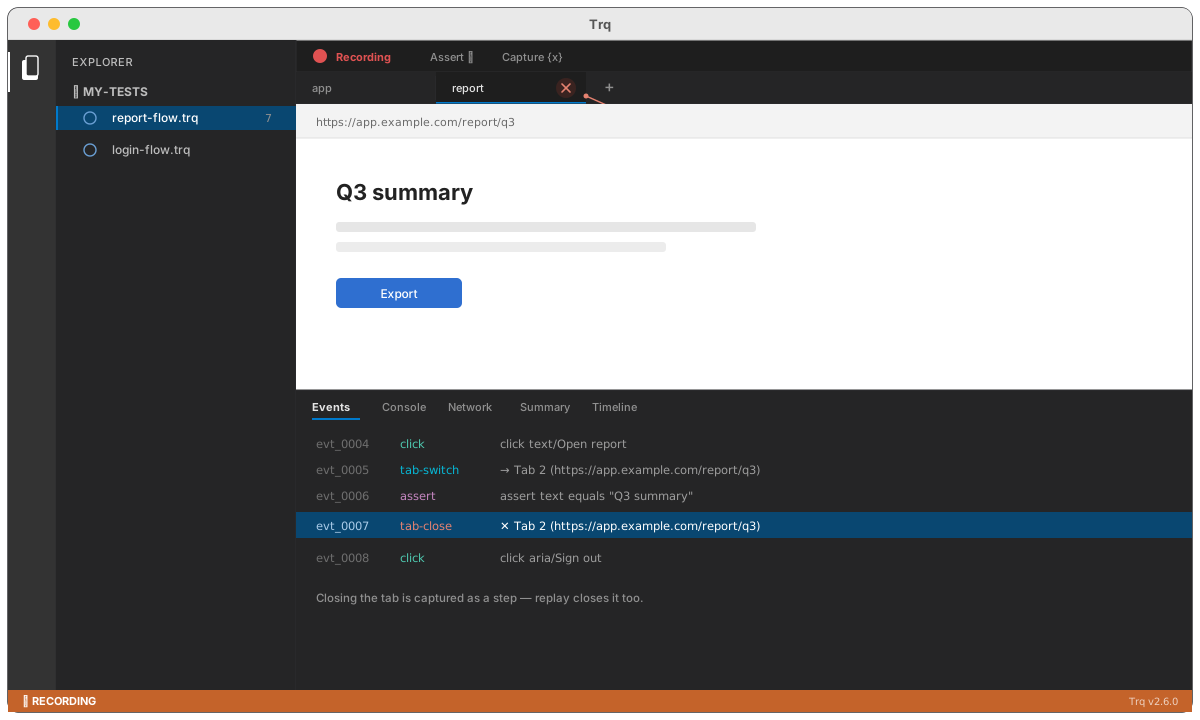
You can also add one by hand: right-click a step → Insert step above/below ▸ ✕ Close tab…, or use + Add step. Its one field is a picker of the tabs opened before that step — a tab opened later can't be closed there, so it isn't offered.
Tabs are addressed by identity, not by position, so inserting or removing a tab elsewhere in the session never makes a close land on the wrong one.
Three behaviours worth knowing:
- Closing the last remaining tab clears its page rather than removing it — Trq always keeps one view. From your side the page closes and the tab resets to blank.
- A tab that has already closed itself is skipped, not failed. Plenty of pages call
window.close()on their own; a step that failed because the thing it wanted gone is already gone would be noise. - Closing works the same on Play, Resume and Debug, and inside a called flow — where the flow shares the caller's tabs, so a flow that opens a tab should close it too.