Adding a step in the middle of a test
There are two ways to put a step somewhere other than the end, and which one you want depends on whether you can type the step or need to perform it.
- Author it — a wait, a navigate, an API request or a call to a flow. You know what it should be, so pick the position and fill in the fields. Covered immediately below.
- Record it — a click, an input, an assertion against the live page. These need real selectors captured with the page in its mid-flow state, so Trq replays up to that point first. Covered in Record step(s) here.
Add an authored step, anywhere
Four positions, four step types, and every combination works.
From a row — right-click any step and choose Insert step above ▸ or Insert step below ▸, then the type. The position is the outer choice because the row you clicked is what decides it; the type list is the same on both sides.
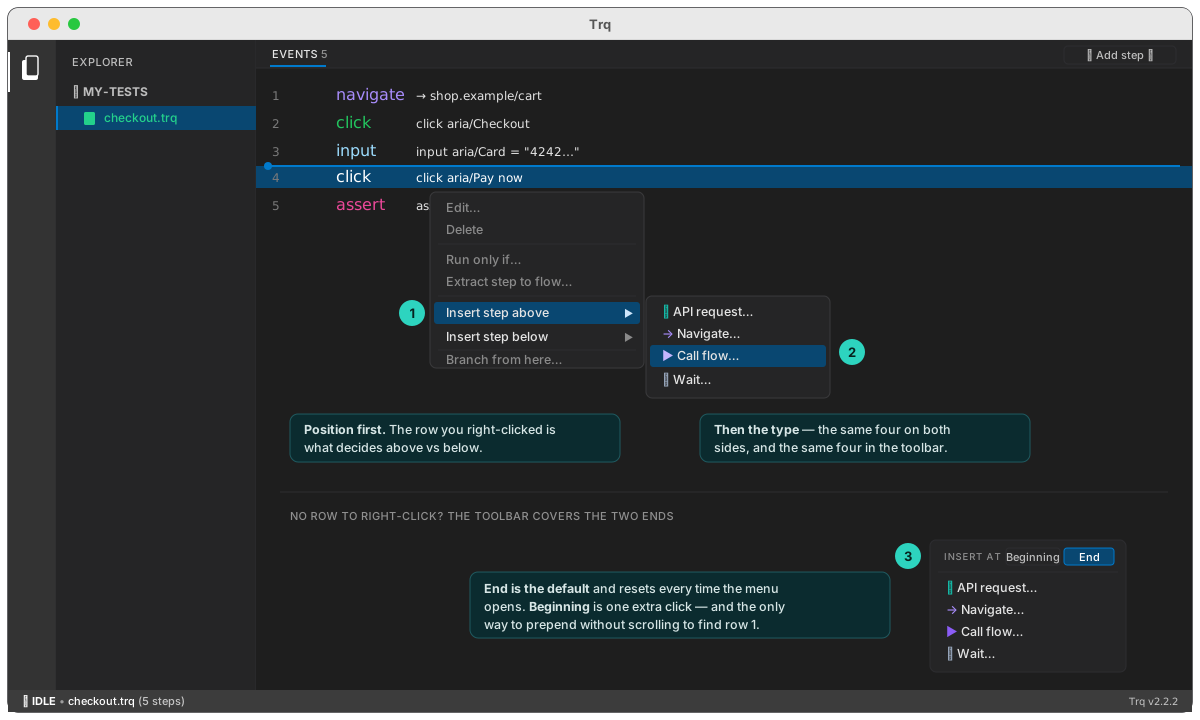
From the toolbar — + Add step has no anchor row, so it offers the two ends instead: Insert at → Beginning or End. That's the only way to prepend a step to a long test without scrolling to find row 1.
| Position | Reach it from | |
|---|---|---|
| Above | before the row you clicked | row right-click |
| Below | after the row you clicked | row right-click |
| Beginning | before every step | + Add step |
| End | after every step | + Add step (default) |
Whichever you pick, the Edit drawer opens in insert mode: fill in the step and Save. The step lands at the slot you chose and everything after it renumbers.
A few things worth knowing:
- End is the default and resets each time the + Add step menu opens — a "Beginning" chosen earlier can never silently prepend a step you meant to append.
- Right-clicking row 1 → above is the beginning, and the last row → below is the end. The toolbar exists for when those rows are off screen.
- On an empty session the position toggle is hidden: both ends are the same slot.
- A navigate step starts with an empty URL rather than inheriting its neighbour's — it exists to go somewhere new.
Record step(s) in the middle of a test
Sometimes you finish a recording and only then realize a step is missing in the middle — e.g. you recorded 10 steps but a click belongs between step 5 and step 6. Record step(s) here lets you insert real, recorded steps at any point without re-recording the whole flow.
What it is
A right-click action on any event row that replays the test up to that point, then drops into recording — with everything you do landing inserted at that position instead of appended to the end. It's "Resume", but starting from a step you choose instead of the end.
Why replay first? A real click needs valid selectors and coordinates captured against the page in the exact state it's in at that point in the flow. You can't author that reliably by hand — so Trq puts the page back into that state (by replaying the earlier steps) and lets you perform the new interaction live.
How to use it
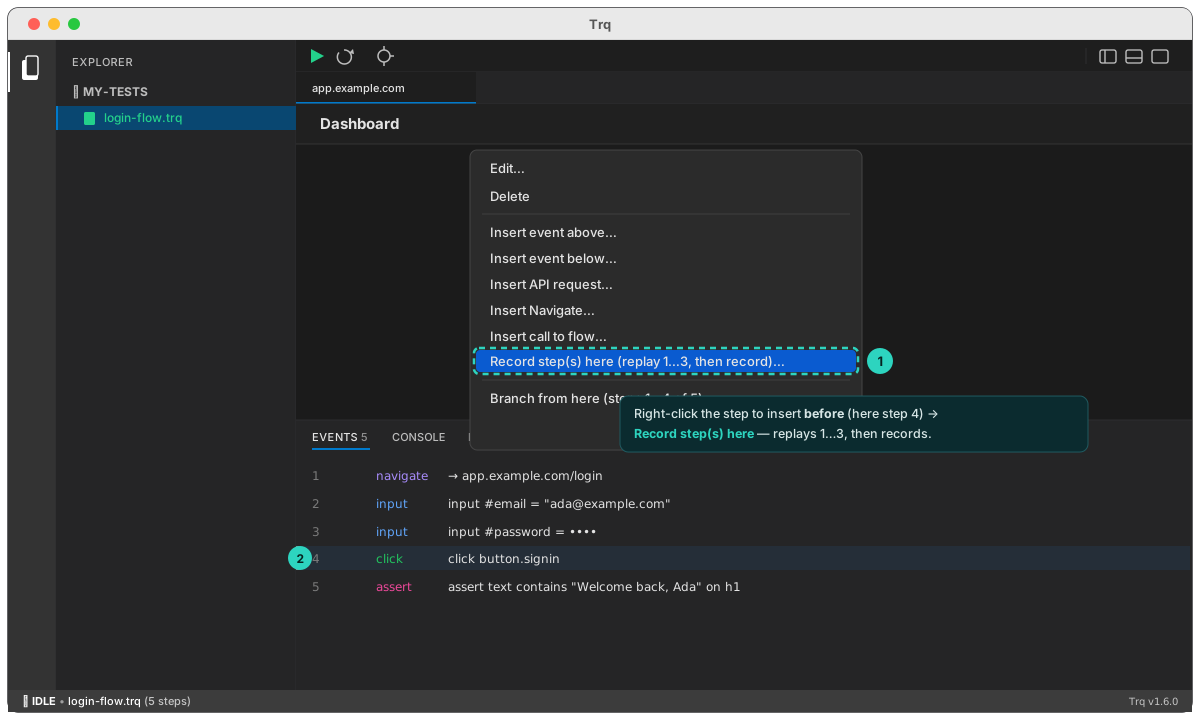
- Open the Events tab and right-click the step you want to insert before (e.g. right-click step 6 to add something between 5 and 6).
- Choose "Record step(s) here (replay 1…N, then record)…".
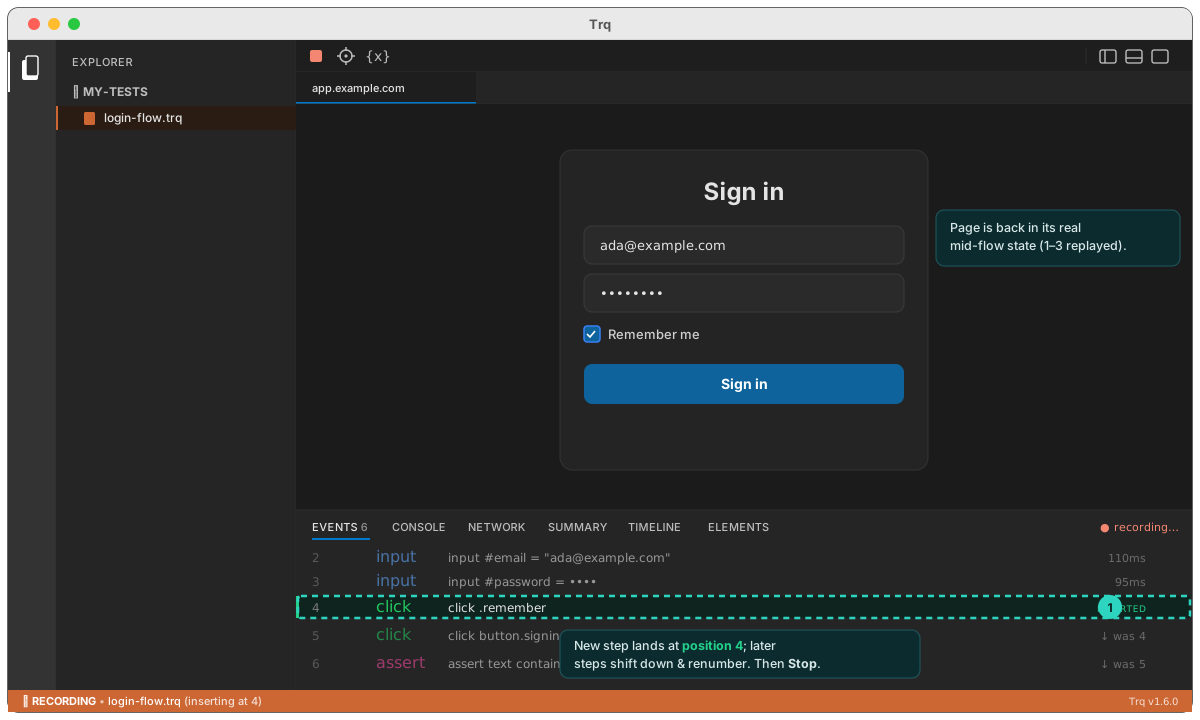
- Click Stop recording when done.
- Click Play to verify the full flow end-to-end.
How it helps
- No re-recording. Add a forgotten click/input/assert in seconds instead of re-capturing a long flow from scratch.
- Correct selectors. Because the page is in its real mid-flow state when you record, the inserted step gets accurate selectors and coordinates — not guesses.
- Insert several at once. Record multiple steps in one sitting; they land in order at the insertion point.
- It's just Resume, generalized. Right-clicking the last step (or using plain Resume) is the same thing with the cursor at the end.
The original later steps are left untouched on disk and are not re-run during the insert — that's why you finish with a quick Play to confirm the combined flow. Today this is a single-tab insert; for steps that span multiple tabs, record them at the end via Resume.