Environments
The same test usually has to run against more than one target: dev, staging, prod. The steps are identical — only the base URL and the credentials change. Environments let you author the test once and swap those values at run time, with no re-recording.
You write the test with placeholders like {{env.baseUrl}} and {{env.username}}; you keep the real values per environment; and you pick the active one from the toolbar (or pass --env on the CLI). Works for both web and mobile tests.
Author with {{env.KEY}}
Anywhere you'd type a value — a navigate URL, an input, an assertion — reference an environment variable as {{env.KEY}}:
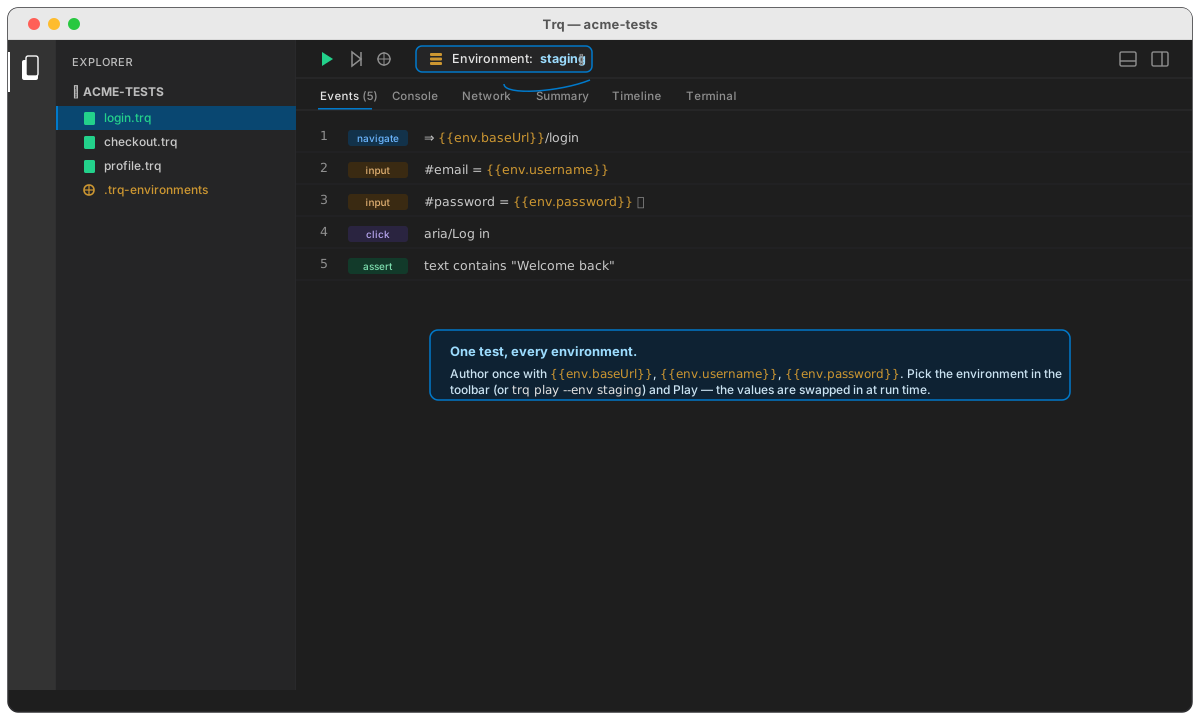
A login test becomes environment-independent:
1.  navigate  {{env.baseUrl}}/login
2.  input     #email    = {{env.username}}
3.  input     #password = {{env.password}}
4.  click     aria/Log in
5.  assert    text contains "Welcome back"
Nothing in the test names a specific host or account — those come from whichever environment is active.
Pick the active environment
The Env control sits in the toolbar (top-right on web, in the device toolbar on mobile). Click it to switch:
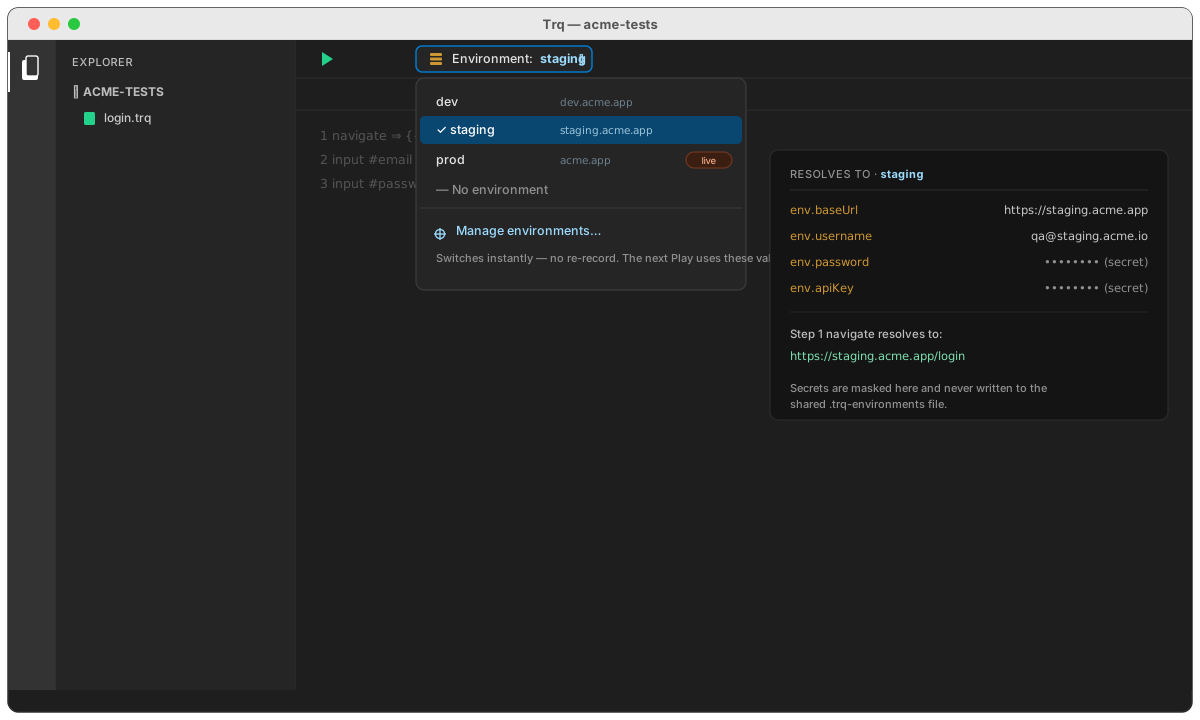
- Choose dev / staging / prod and the next Play/Resume/Debug uses that environment's values.
- No environment clears the selection (placeholders resolve to empty).
- The selection is remembered per project.
Switching is instant — no re-record. The same login.trq you see above now hits https://staging.acme.app/login instead of dev's URL, with staging's credentials.
Manage environments
Manage environments… opens the editor — a rail of environments on the left, a key/value table for the selected one on the right:
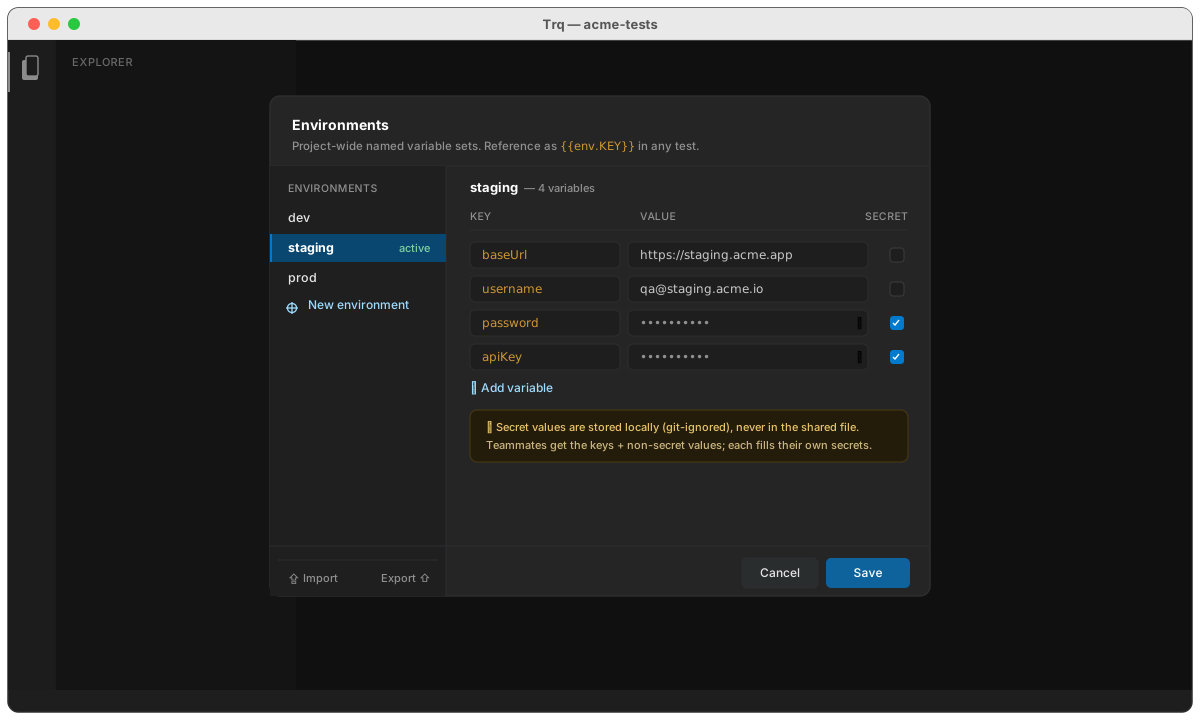
- Add environments (dev/staging/prod) and give each its own
baseUrl,username,password,apiKey, or any keys you like. - Tick Secret to mask a value in the UI.
- Environments live in a single project file,
.trq-environments, alongside your.trqsessions — versioned and shareable like everything else.
Secret values are currently stored in .trq-environments in plaintext (the same as recorded passwords today). A local, git-ignored secret store is coming. Until then, don't commit real production secrets — keep those environments local, or use throwaway test accounts.
Run from the CLI
Environments drop straight into CI. Pick one with --env:
trq play login --env staging
trq play --suite checkout-smoke --env prod
Without --env, the run uses the project's currently-active environment (the one you picked in the toolbar), so trq play login and the Studio agree.
How resolution works
{{env.KEY}}reads from the active environment; a missing key resolves to an empty string.- It's a separate namespace from captured variables (
{{var.NAME}}) and generators ({{uuid}},{{randomNumber}}, …), so they never collide — see Variables & templates. - The session's first
navigatestep is templated like any other, which is what makes the base-URL swap take effect on the very first navigation.