Editing a test
Open the Events tab in the bottom panel. Double-click any step (or right-click → Edit…) to open the Edit drawer. Right-click also offers Delete, Insert steps, Record step(s) here, and Branch from here (fork the first N steps into a new session).
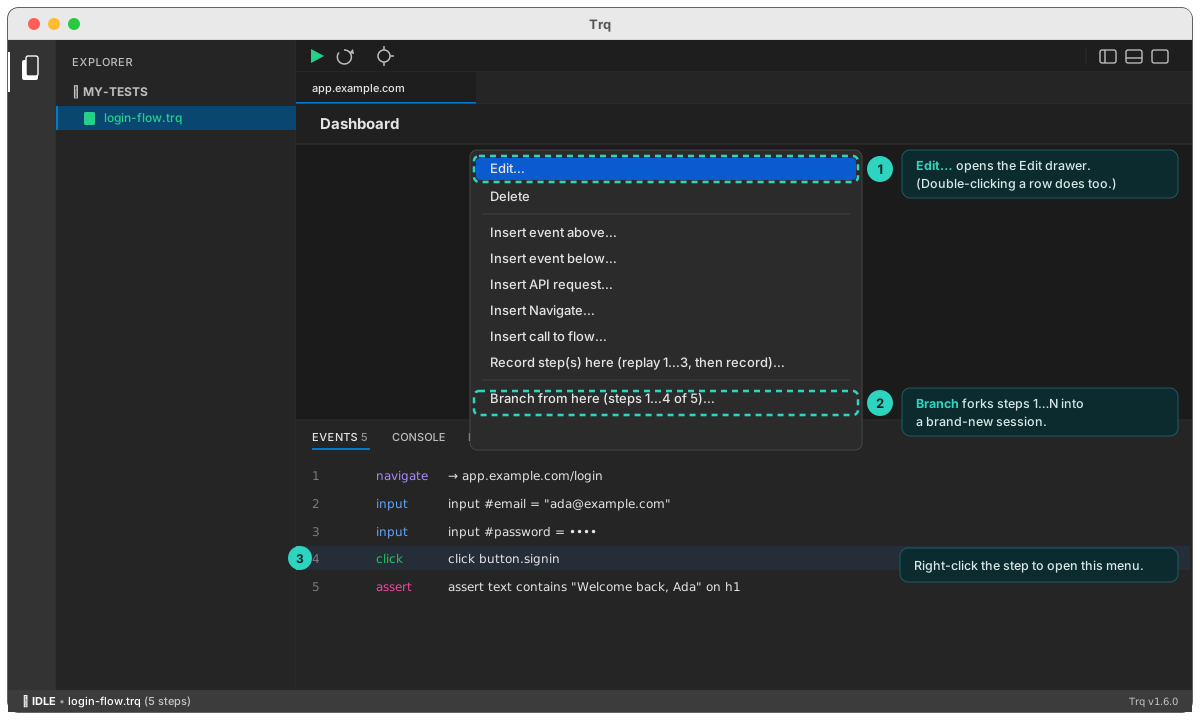
What you can edit depends on the event type:
- Navigate — the URL, the load type (full load vs in-document), and — on a full load — an open in new tab toggle (opens the URL in a fresh tab on replay and continues there; see Multi-tab).
- Input — the value (and password flag).
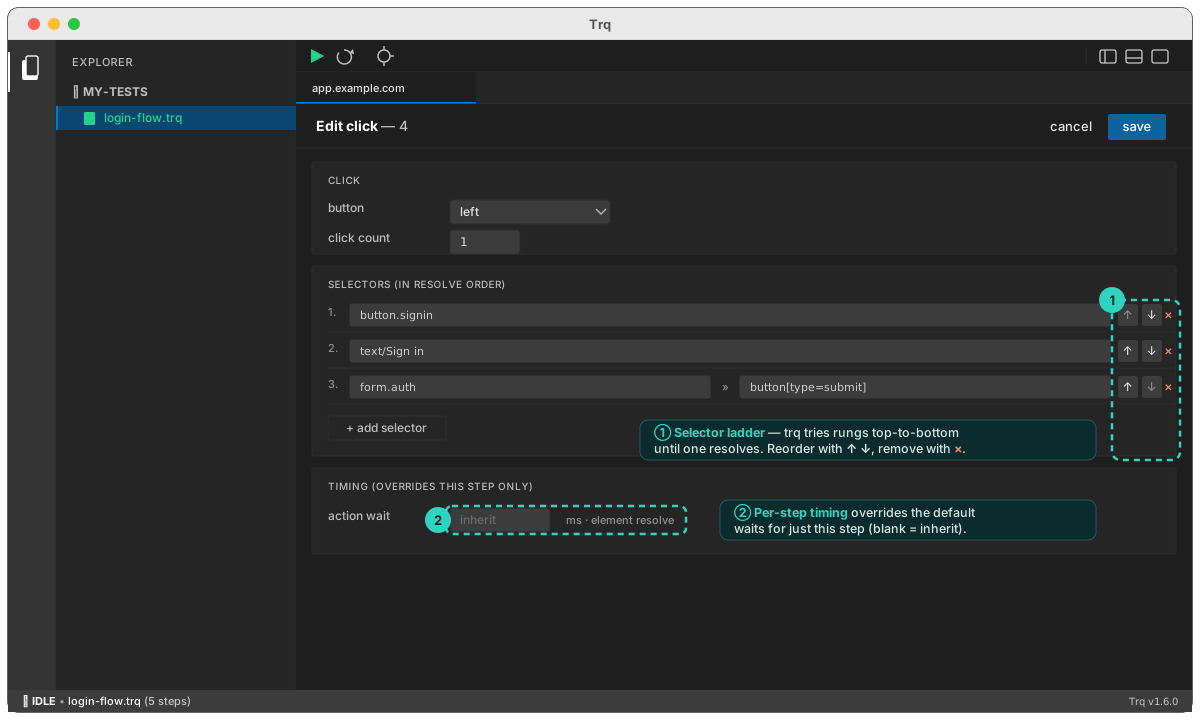
- Click — button and click count.
- Key — key and modifiers.
- Assert — kind (visible / text equals / value equals), the match mode (exact / contains / regex), and the expected text/value (or regex pattern). See Match modes. For tables there are also table · cell / row count / column kinds — see Table assertions.
- File upload — Replace a file, or Add/Remove files for multi-file inputs.
- API request — the full request builder (method/URL/params/headers/body/extract). See API requests.
Every step also has a selector ladder you can reorder (Trq tries rungs top-to-bottom until one resolves), plus per-step timing overrides.
For {{…}} value templates and captured variables, see Variables & templates.