Reading results
The bottom panel has six tabs, populated as a run executes:
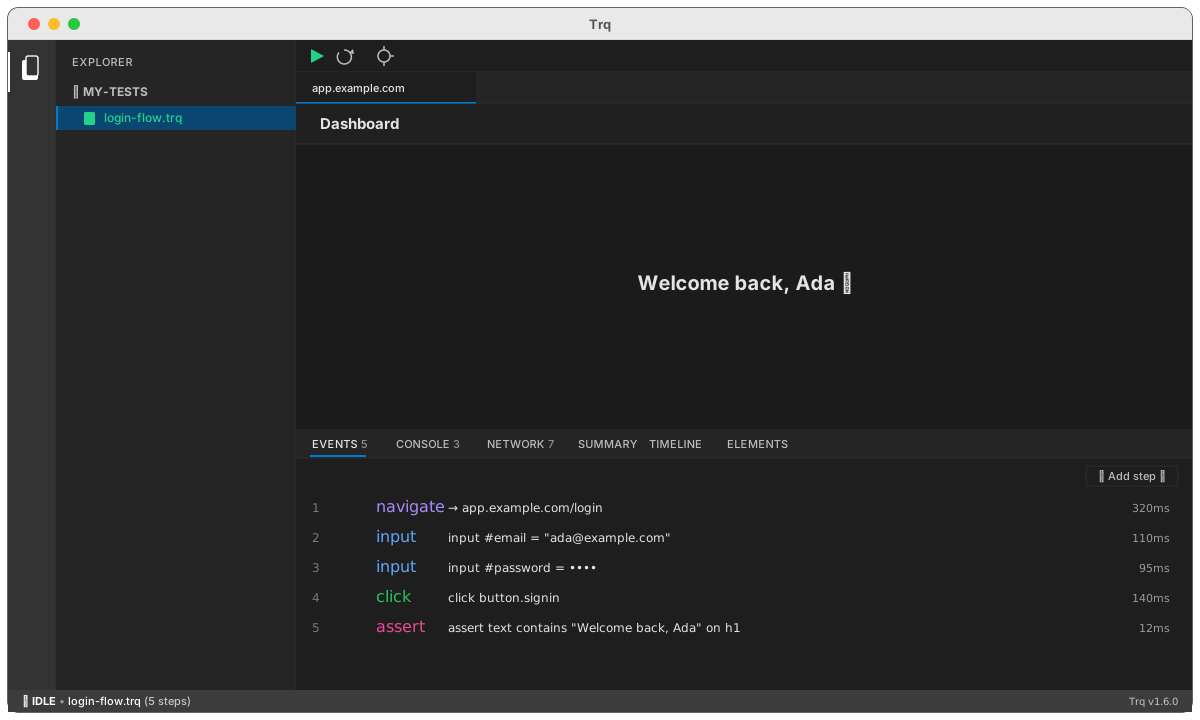
Events
Every step with its timing and pass/fail status; double-click a row to edit it.
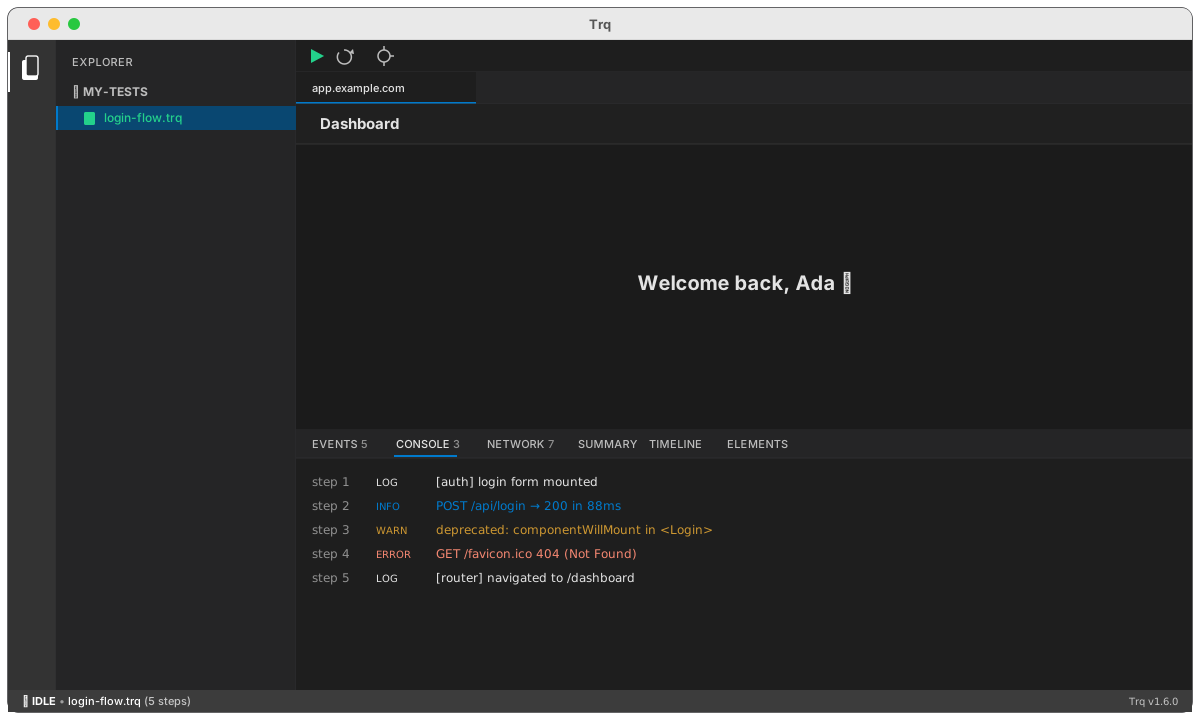
Console
Page-side console output, stamped with the step it occurred on and colored by level (LOG / INFO / WARN / ERROR).
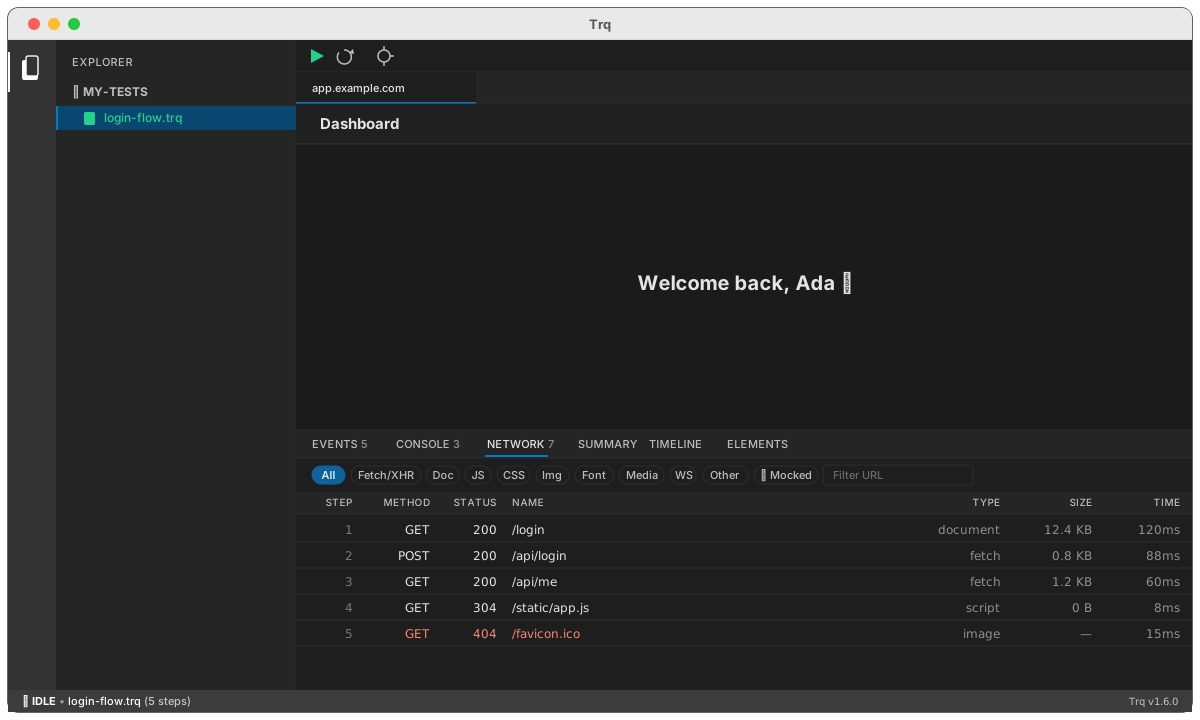
Network
A familiar request inspector: filter chips (All · Fetch/XHR · Doc · JS · CSS · Img · Font · Media · WS · Other) plus a URL search. Each request shows step, method, status, name, type, size and time; click one for Headers / Payload / Response / Timing. The ◉ Mocked chip switches to the recorded snapshot.
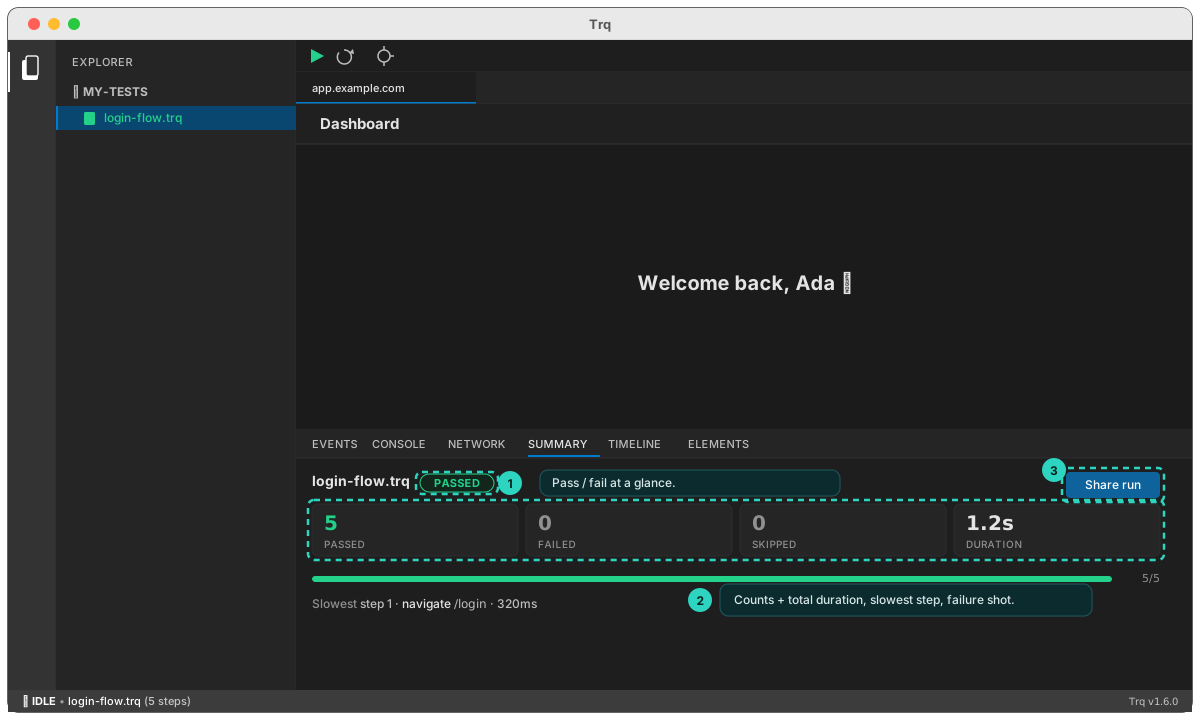
Summary
Pass/fail counts, slowest step, total duration, and the failure screenshot if the run stopped — plus Share run to export the whole run (Share a run).
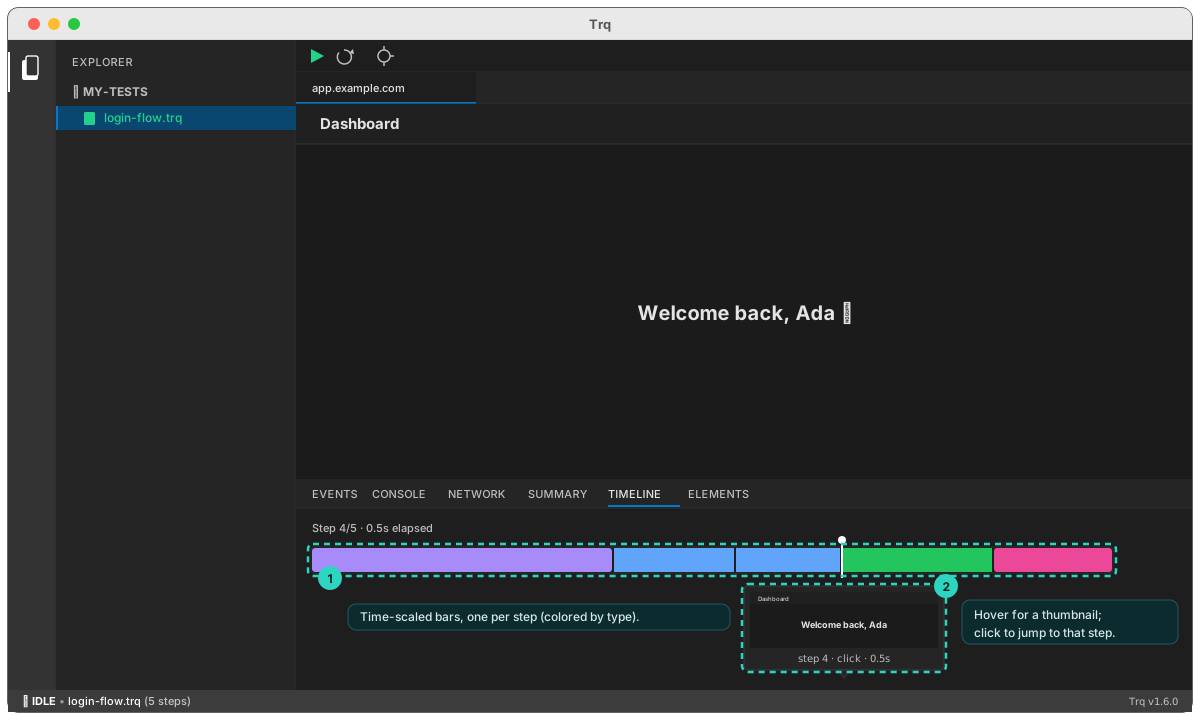
Timeline
A YouTube-style scrubber over time-scaled bars (colored by event type); hover for a thumbnail, click to jump to that step.
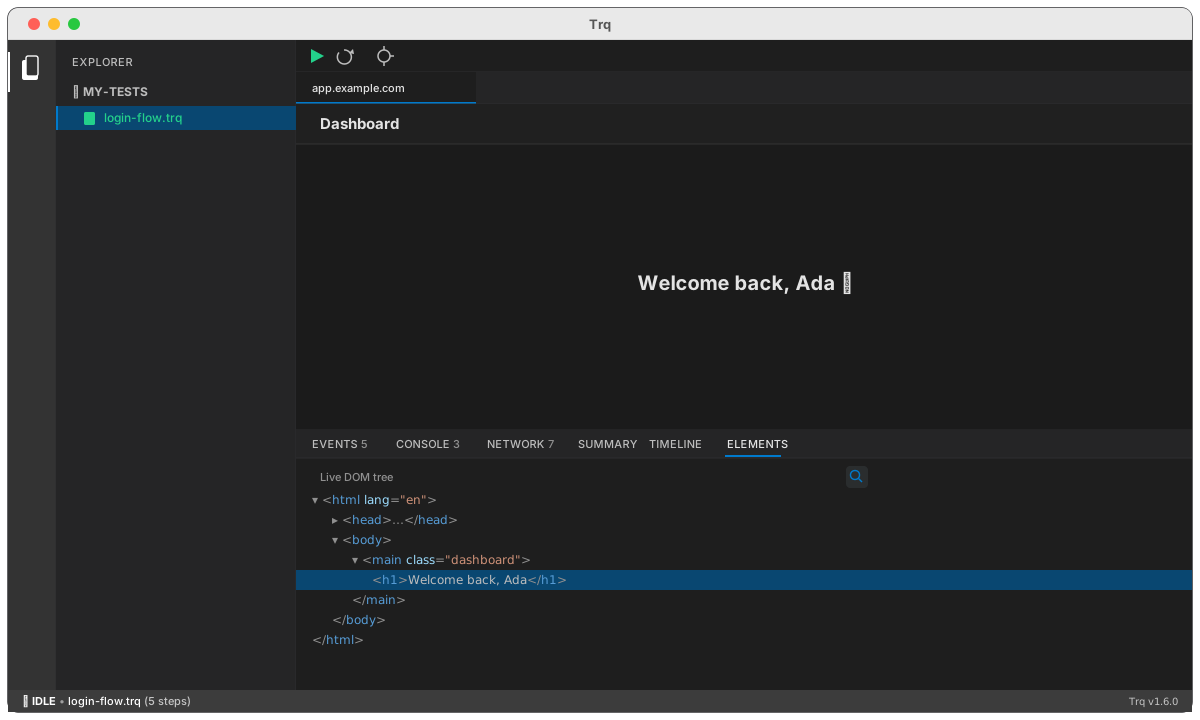
Elements
A live DOM tree of the page (a familiar Elements-style view) with VS Code syntax colors — handy for checking selectors and structure. The inspect button highlights the element under the cursor.