Recording
Click Record on an empty session (or use Resume to extend an existing one). While recording, Trq captures:
- Clicks (with button + modifiers), inputs (text, selects, checkboxes), and keystrokes (Enter, Tab, shortcuts).
- Navigations — full page loads and in-document (SPA) route changes.
- File uploads — the chosen files are content-addressed and stored with the session, so uploads replay byte-for-byte.
- Tabs — opening a new tab and switching between tabs (Studio follows along; see below).
- Assertions you author inline (next).
Passwords are recorded as their actual value (stored in the session bundle) so replay needs no prompts. Treat .trq files that contain credentials accordingly.
Author an assertion while recording
While recording, click the ⌖ Assert button in the top toolbar (between Stop and Capture). It turns blue to show assert mode is on, and the page enters pick mode — hovering outlines each element. Click the element you want to check.
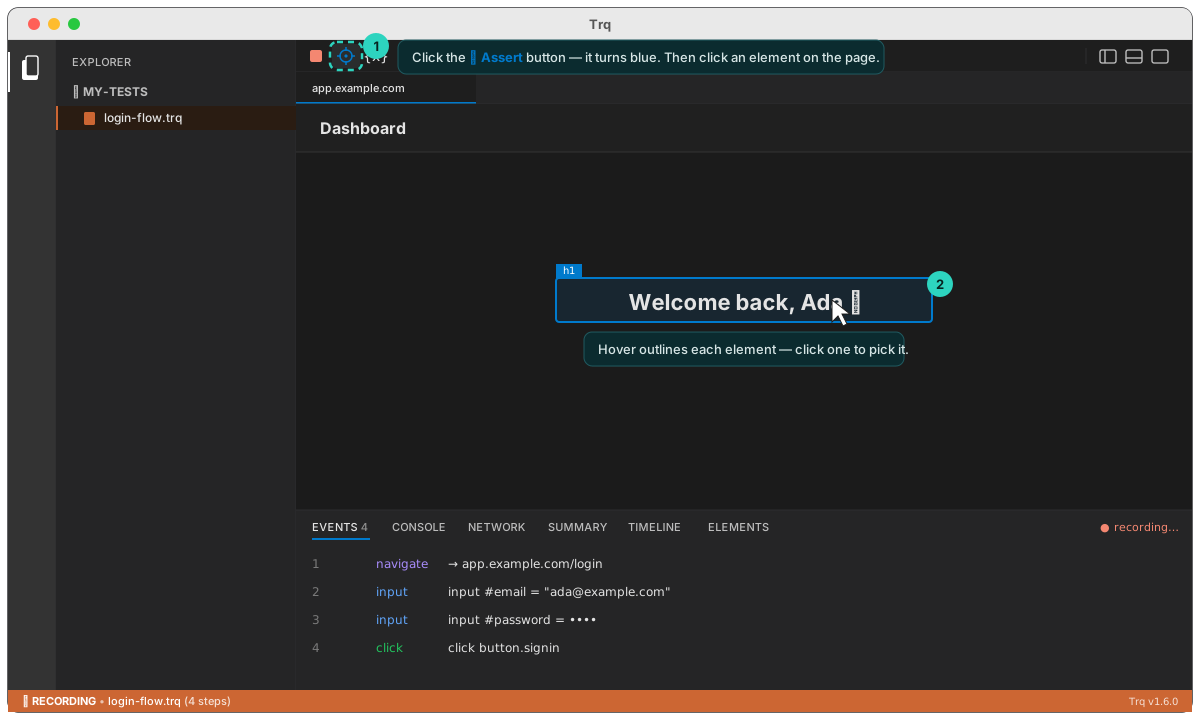
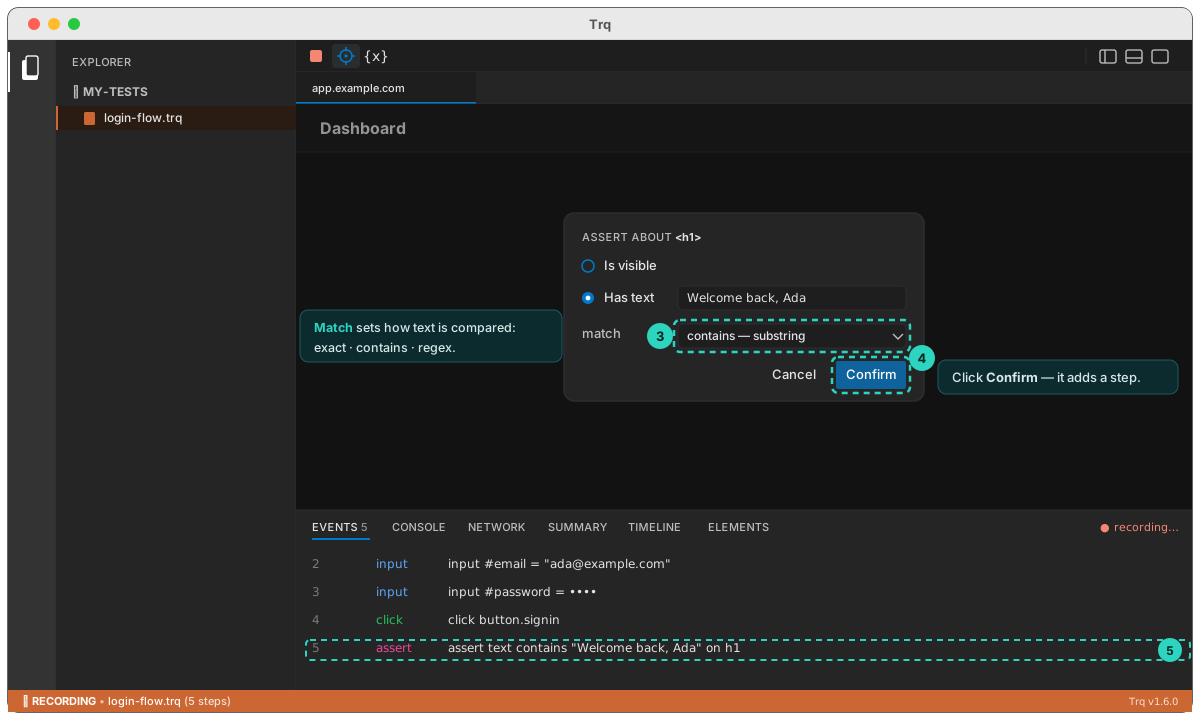
A small menu opens, titled Assert about <tag>, offering:
- Is visible — the element is present and visible.
- Has text — the element's text matches (pre-filled from the element).
- Has value — an input's/select's value matches (pre-filled, shown only for form fields).
Pick one and click Confirm. The assertion is added as a step — it shows up in the Events panel as an assert row (pink badge) like assert text contains "…" on <selector>.
Assertions inside same-origin iframes are supported — the picker reaches into the frame and the menu renders in the main window.
Match modes — exact, contains, regex
For Has text and Has value, a Match dropdown controls how the recorded string is compared against the live value at replay time. The default is exact (and any older recording with no mode set stays exact), so behavior is unchanged unless you opt in. You can set the mode while authoring or later in the Edit drawer (handy for relaxing an assertion that failed because the live text had extra characters).
-
exact — the value must equal the expected string character-for-character.
Has text · match: exact · "Submitted"passes → "Submitted"fails → "Form Submitted", "submitted" -
contains — passes if the expected string appears anywhere inside the live value (substring). Use this when the element wraps your text in extra labels/punctuation.
Has text · match: contains · "Destination Screen"passes → "Destination Screen", "Destination Screen : Thank You"fails → "Source Screen" -
regex — the expected string is a JavaScript regular expression (
new RegExp(pattern), case-sensitive, no/…/flagswrapper) tested against the live value. Use anchors/character classes for precise structural checks.Has text · match: regex · "^Order #\d+$"passes → "Order #7742", "Order #1"fails → "Order #", "Pending Order #12"An invalid pattern fails the step with
invalid regex "…".{{var.NAME}}templates are resolved before the match, socontains/regexcan reference captured values too.
Failure messages name the mode, e.g.
expected text to contain "Destination Screen" but found "Source Screen" (after 5000ms).
Multi-tab
In Studio, recording and replay follow into new tabs and windows — tab-open and tab-switch are captured and re-driven automatically.