File & document uploads
Mobile apps take files two ways — a system file picker, or the native camera. Trq handles both.
File upload
When your app opens the system file picker for an upload, record a file upload step: click the ☁ Upload toolbar button, pick a file on your computer, then tap the upload control on the device. That records one step pairing the file with the control.
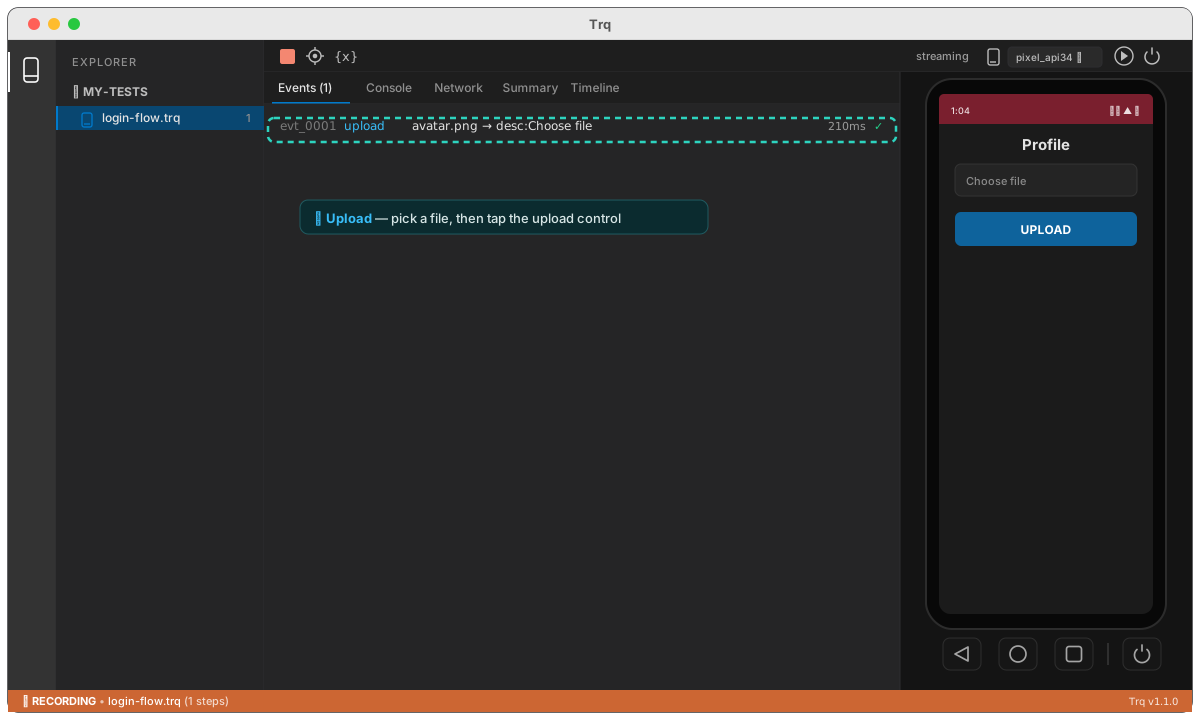
On replay, Trq pushes the file to the device, taps the control to open the picker, and selects your file by name — so the input ends up holding it. The file is content-addressed and stored inside the .trq bundle, so the upload travels with the test. You can swap it later from the Edit drawer.
This works when the app opens a standard system picker (a web view's file chooser or a native pick/get-content flow). An app with a fully custom in-app browser can't be driven this way.
Document / camera capture
Some flows capture a document or receipt with the native camera — which an emulator has no real feed for. For apps that ship a Trq test hook, a camera capture step injects a chosen image as if the camera took it: attach a document image, and on replay Trq drives open → shutter → confirm/crop so the app proceeds with your image, deterministically. The Edit drawer shows a thumbnail of the attached image, just like a file upload.
Unlike file upload, there's no generic way to feed a native camera on an emulator, so this path requires a build of the app that ships the automation hook. For web-view <input type="file" capture> uploads, use file upload above.