A real phone
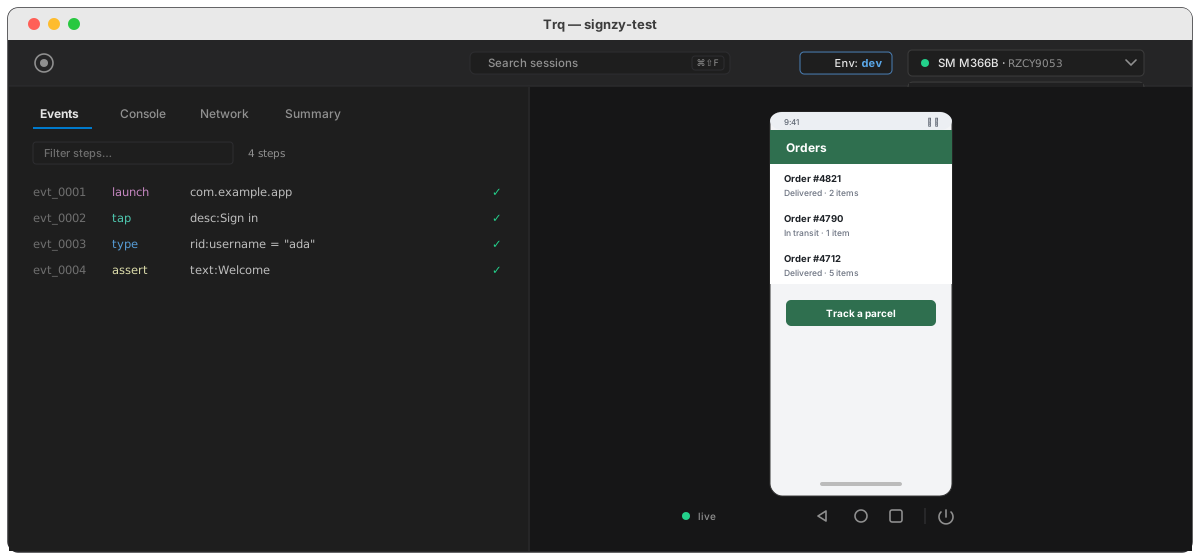
Trq drives a plugged-in Android handset exactly as it drives an emulator: the same recorded session, the same steps, the same replay. Plug the phone in, pick it, press Record.
Turn on USB debugging
Two separate things are both called "USB debugging", and getting one without the other is the usual reason a phone doesn't appear.
- The toggle, in Developer Options. Tap Build number in Settings → About seven times to reveal Developer Options, then enable USB debugging.
- The authorisation, a prompt that appears on the phone the first time a computer connects. Unlock the phone and tap Allow.
Tick Always allow from this computer on that prompt. Without it, Android asks again every time you re-plug the cable — and the prompt only appears while the phone is unlocked, which is why it is so often missed.
Pick the device
The picker lists everything adb can reach, in two groups:
- Connected — handsets and any running emulator, side by side. A running emulator is just another connected device, which is why there is no separate "attach" step.
- Available AVDs — emulators you have but aren't running. Each offers Boot.
The dot in front tells you where you stand:
| Dot | Meaning |
|---|---|
| Green | Ready — record, replay and the live view all work |
| Amber | Connected, but not drivable yet (see below) |
| Grey | Nothing selected |
A device Trq can see but can't drive is listed but not selectable, with the fix on the row beneath it. The device panel says the same thing in full, with a Check again button — your hands are on the phone at that moment, so you shouldn't have to go hunting for the picker.
| adb says | What it means | The fix |
|---|---|---|
unauthorized | The phone hasn't trusted this computer | Unlock it and tap Allow |
offline | The bridge has it but can't reach it | Reconnect the cable |
An unauthorised phone reports no model name — adb won't say what a device is until it trusts you. That's why it appears as "Phone awaiting permission" with a serial rather than by name.
The helper app
On the first run against any device, Trq installs a small instrumentation app — dev.trq.uiserver. It holds a warm accessibility session and answers over a socket, which is what makes reading the screen fast: around 120 ms per read, against roughly 2.5 seconds for a cold uiautomator dump.
It also reports more about each element than adb alone can: whether it is really visible (on screen, not scrolled away, not covered), whether it scrolls its own content, whether it is selected, and any placeholder text. Those are what conditions ask about — and why "exists" and "is visible" can be different answers.
It installs itself, updates itself when Trq ships a newer one, and needs no root. To remove it:
adb -s <serial> uninstall dev.trq.uiserver
Trq falls back to uiautomator dump if it can't install — everything still works, just slowly.
The live view
The phone's screen appears in the right-hand panel and updates continuously. Frames are captured and scaled on the device before being encoded, so Trq ships about 40 KB per frame rather than a full-resolution screenshot:
| Per frame | |
|---|---|
| Emulator | continuous stream |
| Phone | ~57 ms |
It keeps updating during a replay, so you can watch a test drive the phone rather than guessing from the step list. That costs a run about 4%.
The picture stops only when there is a reason, and says which: a run in progress, a screen that can't be captured, or a device that has gone.
Screens that can't be captured
Banking and payment apps mark sensitive screens FLAG_SECURE, and Android refuses to screenshot them — for Trq exactly as for any other app. The panel says so instead of showing a frozen or black frame.
Recording still works on those screens. The accessibility tree is readable even when the pixels aren't, so taps, asserts and captures all behave normally. You just can't see what you're doing.
Driving it by hand
Click and type on the panel and it reaches the phone. One difference from the emulator is worth knowing:
- On an emulator, a drag follows your pointer — the screen scrolls as you move.
- On a phone, a drag resolves when you release it. Press, move, let go, and the swipe happens in one motion.
Taps, long-presses, typing and the ◁ ○ ▢ keys behave identically on both.
What differs from an emulator
Almost nothing. The same session file runs on either; nothing in a recording is tied to the device it was made on.
| Emulator | Phone | |
|---|---|---|
| Record, replay, debug | ✓ | ✓ |
| Live view | ✓ | ✓ |
| Drag follows the pointer | ✓ | resolves on release |
| Boot from Trq | ✓ | — (plug it in) |
| Secure screens | capturable | not capturable |
From the CLI
trq play drives a phone with no extra flags — it uses whatever is attached. With more than one device, name the serial:
adb devices                       # list serials
TRQ_SERIAL=RZCY9053B3Y trq play login
See Mobile from the CLI for CI.
If the phone doesn't appear
Work down this list — it's ordered by how often each one is the answer.
adb deviceson your own terminal. If Trq can't see it, neither can adb, and the problem is below Trq.unauthorized? The prompt is on the phone and needs the screen unlocked. If you never see it,adb kill-server && adb start-serverforces a fresh handshake and asks again.- The cable. Charge-only USB cables are extremely common and carry no data. A phone that charges but never appears is almost always this.
- Re-plugged and now unauthorised? Expected, unless Always allow from this computer was ticked.
- Still nothing — revoke and start over: Developer Options → Revoke USB debugging authorizations, then reconnect.
See also
- Android setup — installing the SDK and
adb - The emulator — booting and attaching AVDs
- Recording — authoring the steps themselves