Playing back
Click Play. Trq:
- Brings the app to a clean state — clears app data and (optionally) auto-grants runtime permissions, so runs don't depend on leftover state or a permission dialog.
- Replays every step from step 1, with live ✓/✗ status in the Events panel and the currently-running step kept in view.
- Captures a screenshot per step (full-page only on failure) for the Summary and report.
- Stops at the first failure, or completes the run and jumps to Summary.
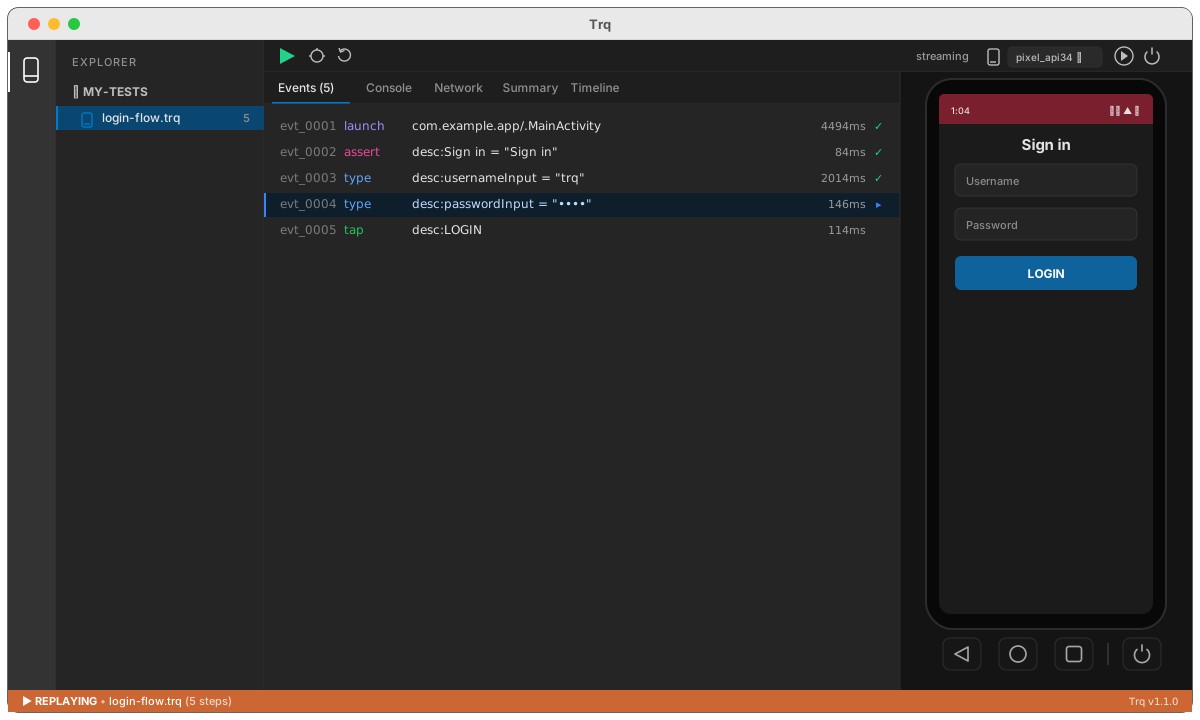
Resume and Debug are variants: Resume replays then keeps recording from the end; Debug steps through one step at a time.
When a step fails
Instead of ending the run, Trq pauses at the culprit. A banner names the step and reason, and the toolbar offers:
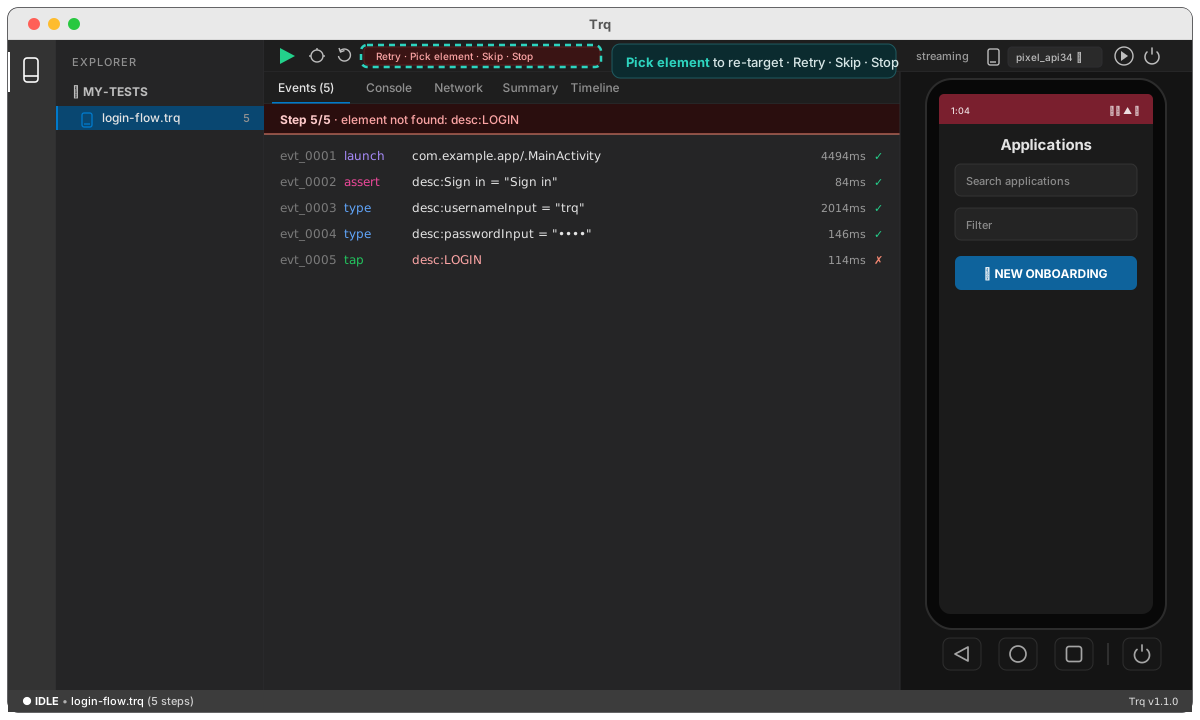
- Retry — re-run the step (it reads the freshest version from disk, so you can edit first).
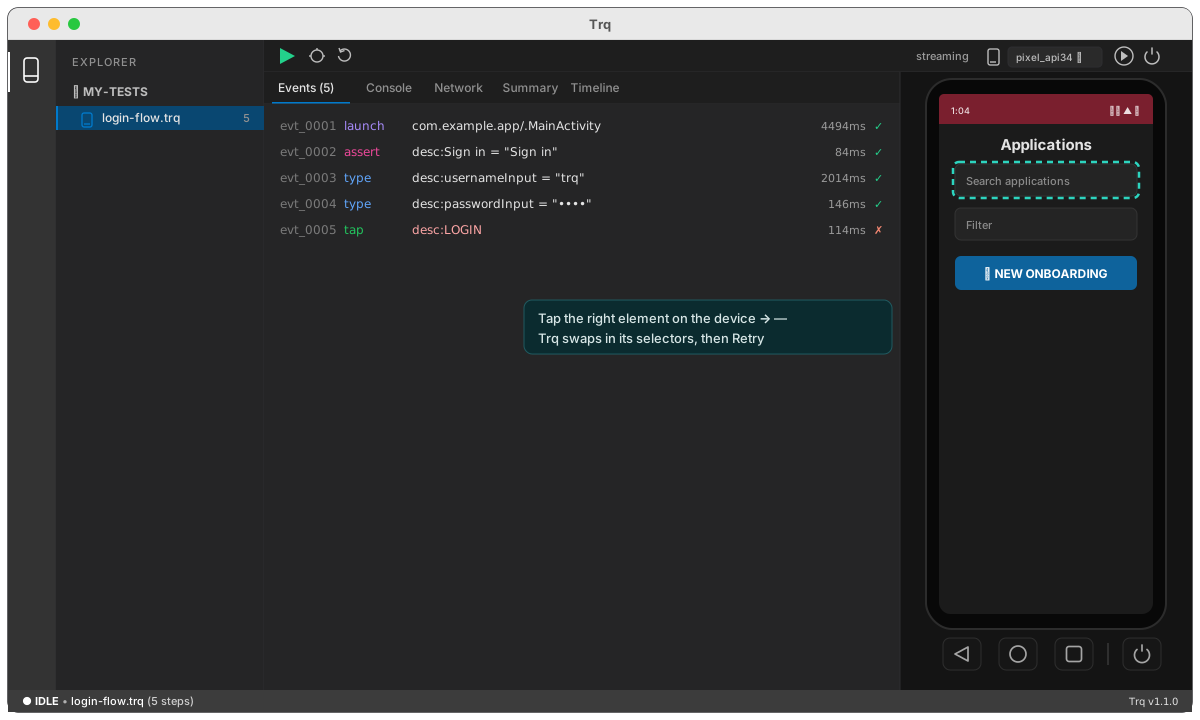
- Pick element — tap the correct element on the device; Trq swaps in its selectors and saves them onto the step, so the fix heals future runs. Then Retry.
- Edit step — open the Edit drawer on the failed step.
- Skip — mark it skipped and continue.
- Stop — abort the run.
A thin diagnosis strip explains why — what's on screen now, whether the element appears under a different label, and a Go to step N button that flashes the likely upstream cause. You can also right-click any earlier row → Replay from here when the real problem was upstream.
Genuinely flaky steps can retry automatically before ever pausing you — see reliability.