Record your first test
This walkthrough uses the Trq desktop app — download it for macOS if you don't have it yet.
Launch the Trq app (⌘-Space → "Trq", or from Applications). You'll go from an empty folder to a recorded, replayable test in about a minute — no code.
1. Open a project
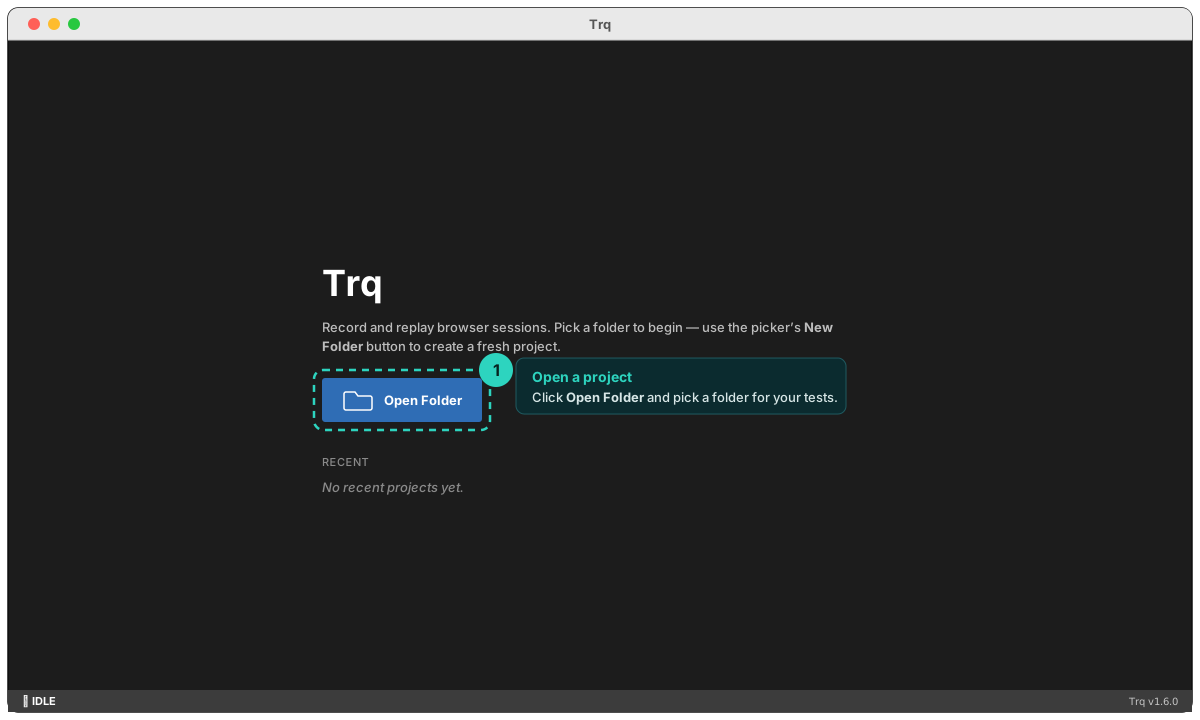
On the welcome screen, click Open Folder and pick (or create) a folder where your tests will live. Each session you record is saved there as a single .trq file, so a project is just a folder of .trq files.
2. Create a session
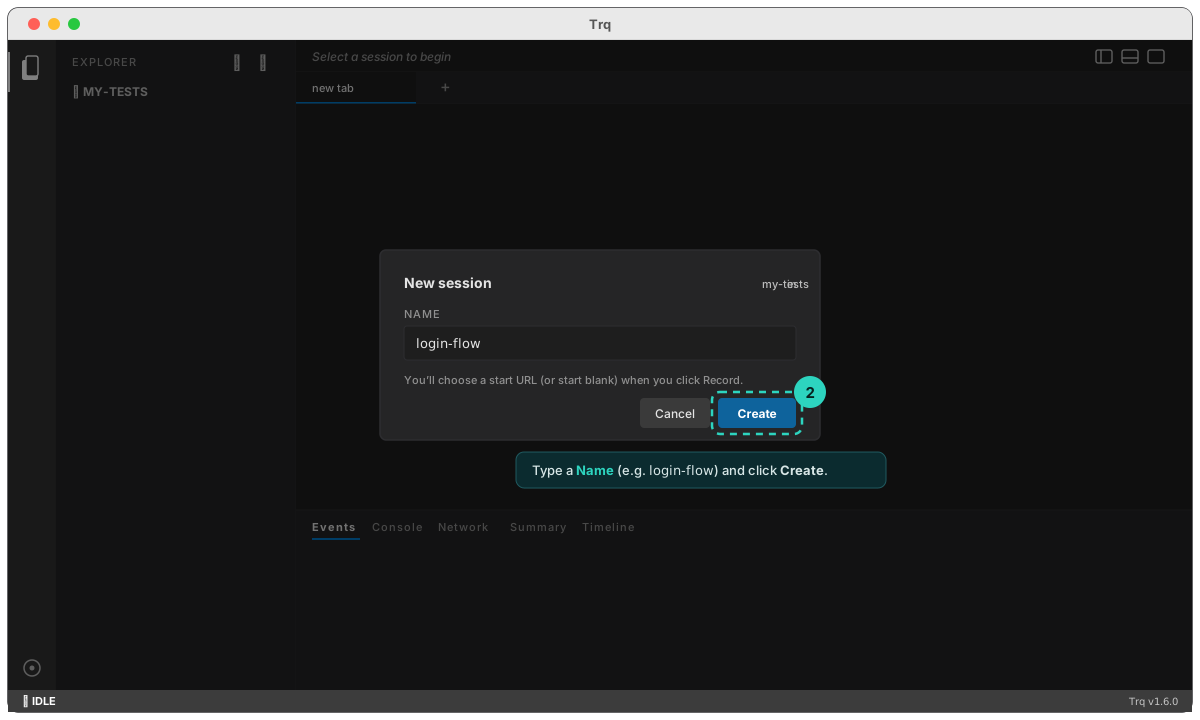
In the EXPLORER sidebar, click the + New session button (or right-click the project → New session). Give it a Name like login-flow and click Create. There's no URL field here — you choose where to start when you hit Record.
3. Record
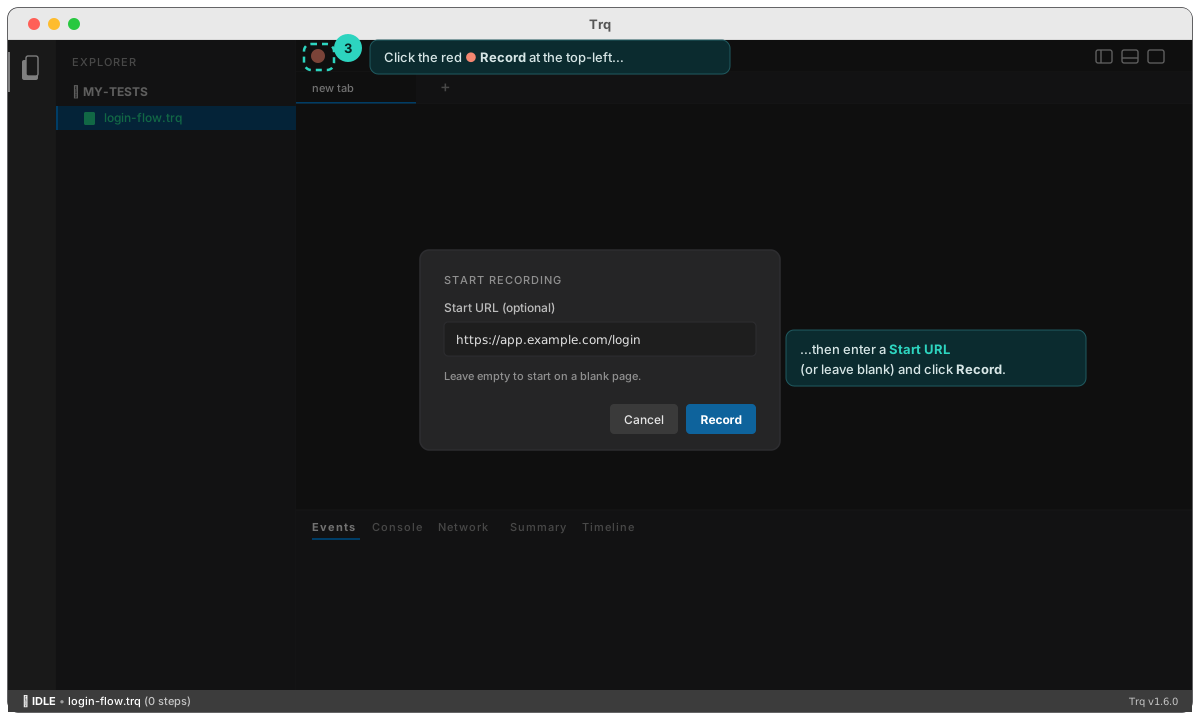
With login-flow.trq selected, click the red ● Record button at the far left of the top toolbar. Trq asks for a Start URL — type the page to begin on (e.g. https://app.example.com/login) and click Record, or leave it blank to start on a blank page (handy when an API request produces the first URL).
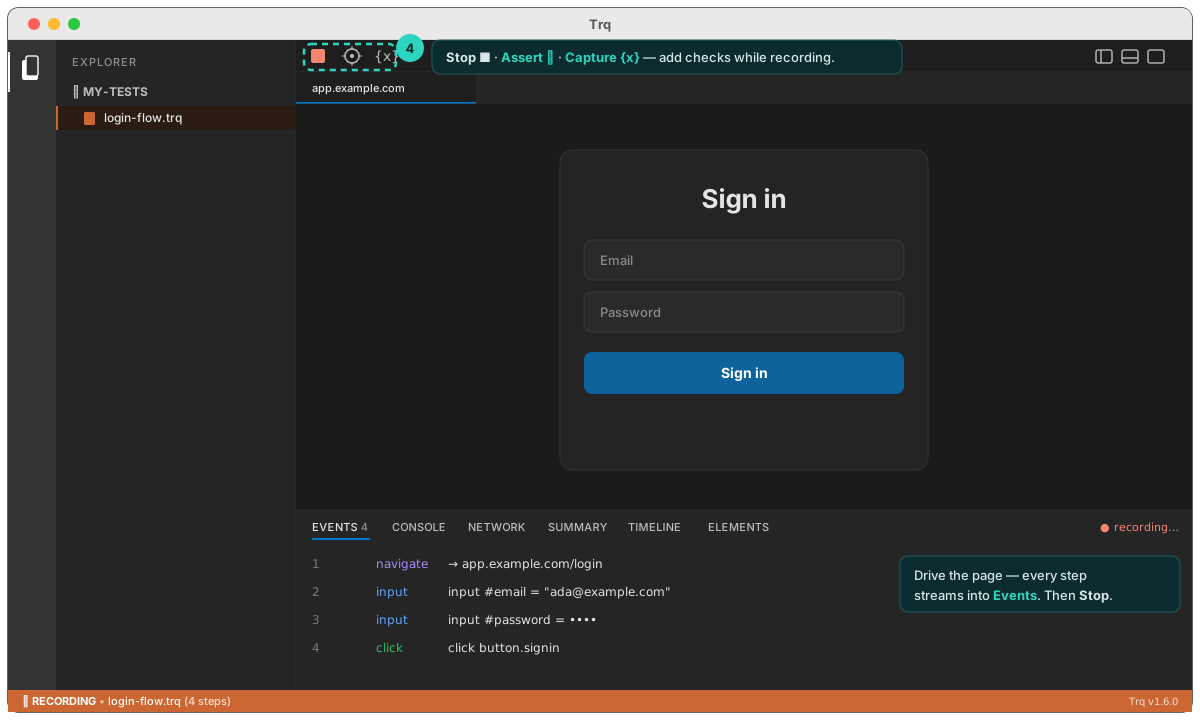
Trq opens that URL in the embedded browser and switches into recording mode — the status bar turns orange. Now drive the page like a normal user: type, click, submit. Every action streams into the Events panel at the bottom, and the toolbar gains Assert ✛ and Capture {x} so you can add checks and pull values out of the page as you go.
4. Stop
Click ■ Stop in the toolbar when you're done. Your steps are saved straight to the .trq file.
5. Play it back
Back at idle, click ▶ Play. Trq clears the browser's cookies, storage, and caches, then replays your flow from step 1 — deterministically. Each step turns green with its timing, and the Events header shows ✓ all passed.
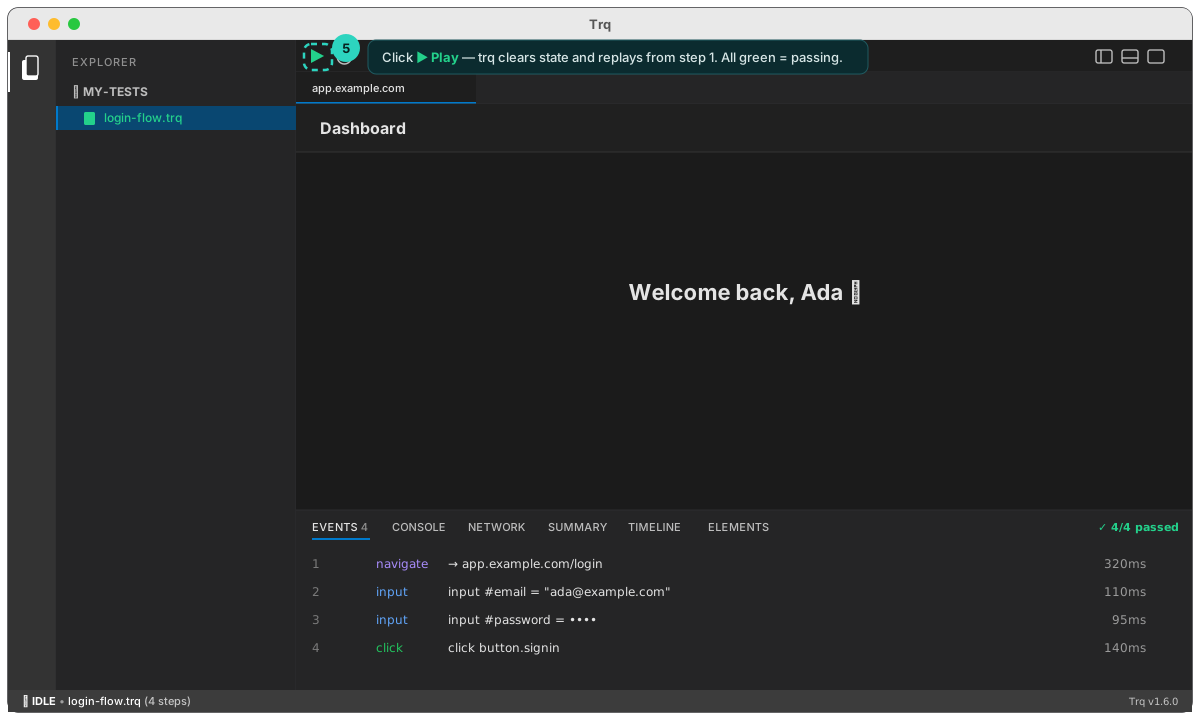
That's a complete test — recorded, saved, and repeatable. Next: author assertions and captures while you record, so your tests check the right things.