Running a case
A Send fires one request. Run replays the whole session as a test case — every request, top to bottom, with variables flowing down the chain — and reports a single verdict.
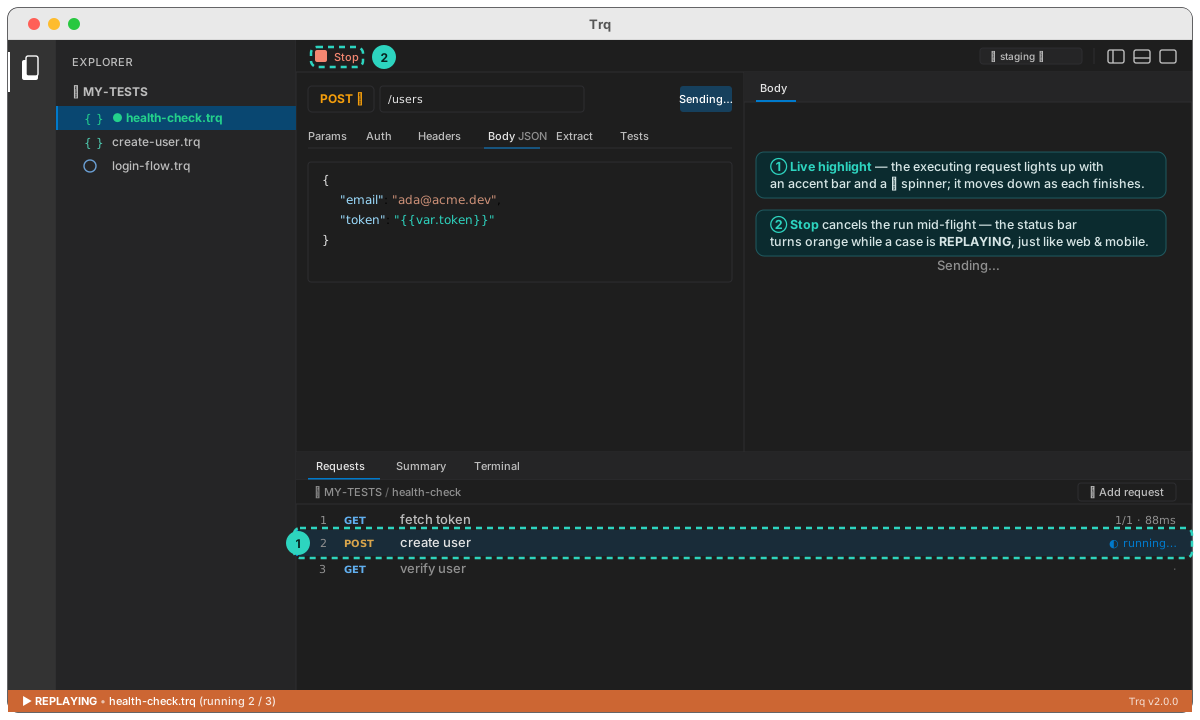
The Requests panel
Requests live in the Requests tab of the bottom dock panel — the same shared panel as web and mobile, with the same shortcuts (⌘J toggle, ⌘D dock left/right, focus mode). Each row shows its index, method, name, and — after a run — its pass/total and timing.
- + Add request (top-right of the panel) appends a new request.
- Double-click a row to rename it — named steps make the report readable.
- ⌘-click (Ctrl-click) or ⇧-click to select several, then delete them in one go. The same selection gestures as the web and mobile Events list.
- A request with a condition carries an
ifchip; it runs only when that condition holds, and is reported as skipped otherwise. - Drag a row to reorder — requests run in list order. See Reorder requests for what the drag tells you about the variable chain.
⌘⇧Fsearches every session in the project by name, API and otherwise, and shows how many other sessions call each one. See the web guide.
Run
Press ▶ Run in the toolbar. Trq executes each request in turn:
- The currently executing request is highlighted live — an accent bar and a spinner — and the highlight moves down the list as each finishes.
- The request/response panes refresh to the executing request, so you watch real responses stream past.
- Variables extracted by one request are available to the next (see chaining).
- The status bar flips to orange REPLAYING while the case runs, exactly like a web or mobile replay.
Stop
Click ■ Stop (it replaces Run while a case is executing) to cancel mid-flight — useful when an early request is clearly wrong and you don't want to wait out the rest.
A single Send cancels the same way: while the request is in flight the button reads ■ Cancel. That matters because an HTTP request has no timeout of its own — against an endpoint that accepts the connection and then never answers, a Send would otherwise sit there indefinitely.
Cancelling also aborts any seeded prerequisite requests running underneath it, and is treated as a cancel rather than a failure: the response panel simply clears.
Results stay until the next run
A finished run's results are kept per session, so opening another file in the explorer and coming back shows what you had: the ticks in the Requests panel, the Summary, the Console, and every response body — including those of the requests inside a called flow, however deep they nest.
They survive quitting Studio too. The last run of each session is stored under .trq/runs/ beside your project (the directory ignores itself, so it will not show up in git status), and read back when you open the case again.
Two things deliberately do not persist:
- A result is dropped when the steps change. Insert, delete or reorder a request and the results no longer describe the case, so they go rather than attaching a tick to a step that never ran. The panel says so — "The steps changed since the last run, so those results no longer apply" — rather than falling back to the never-been-run copy, which would read as if nothing had happened.
- Editing a value keeps them. Changing an expected value or a URL does not move anything, and last run's pass is still a true statement about what happened.
Retries
A request that was sent more than once says so, in sends — the same unit the Retry tab's attempts uses:
↻3beside the duration in the Requests panel and the Summary table- a Retried card in the Summary
· sent 3×on the failure line↻ send 2 of 3on the row while it waits, so a retry is visible as it happens
The duration shown is the last attempt's, not the total — which is why the count is stated rather than left to be inferred from the timing.
Fail-fast
A case runs in order and reports every request's result. When you need the same case on a build server — with an exit code instead of a panel — run it from the trq CLI.
Next: read the run report, or wire it into CI.